
Appearance
Contacts
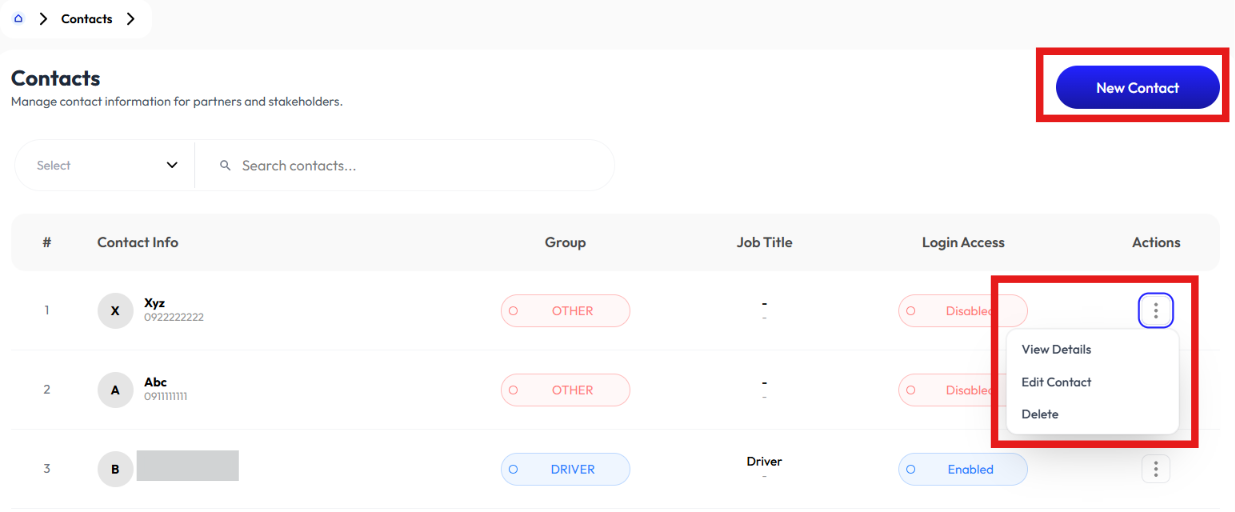
- User creates contacts using the New Contact button.
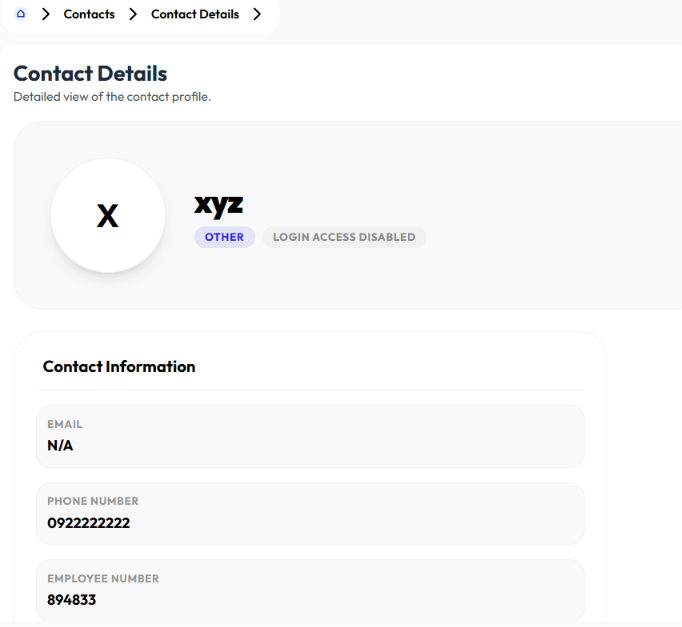
- User clicks on an item to display Detail.
- User edits a contact using the Edit button.
- User removes a contact using the Delete button.
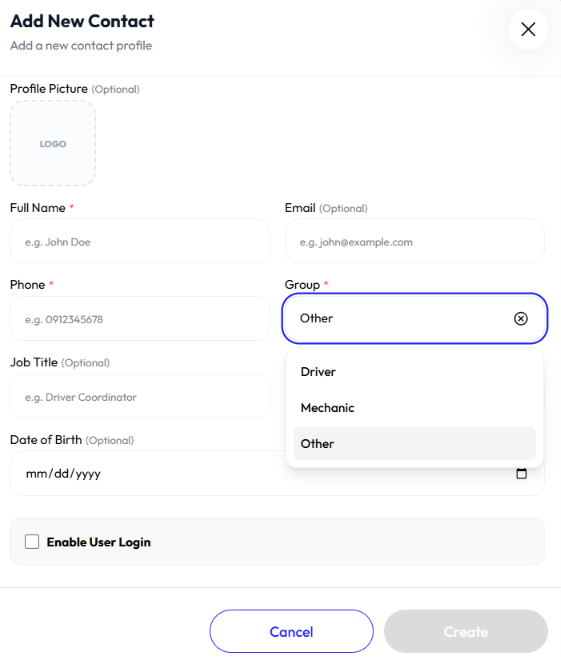
Add Contact
- Click new contact button
- Upload picture (optional)
- Enter full name
- Enter email (optional)
- Enter phone
- Select group (driver, mechanic, other), if group is:
- Driver:
- Enter license number
- Enter license expiry
- Select driver type (long haul, short haul)
- Enter TIN number
- Enter Djibouti ID no
- Enter Djibouti ID issue
- Enter Djibouti expiry
- Enter start date
- Enter end date
- Enter emergency contact name
- Enter emergency contact address
- Enter educational background
- Enter work experience
- Enter bank account
- Upload driver documents
- Mechanic:
- Enter certification
- Enter experience
- Switch on or off for is internal mechanic
- If not internal mechanic, select workshop
- Other:
- Select role
- Driver:
- Enter job title (optional)
- Enter employee number (optional)
- Enter date of birth (optional)
- Enable or disable login access
- If enabled enter username and password
- Click save contact
Detail
- Click action button
- Click details
Edit
- Click action button
- Click edit
- Upload picture (optional)
- Update full name
- Update email (optional)
- Update phone
- Select group (driver, mechanic, other)
- Update job title (optional)
- Update employee number (optional)
- Update date of birth (optional)
- Enable or disable login access
- Click update contact
Delete
- Click action button
- Click delete
- Click ok