
Appearance
Vehicles
Vehicle Type
- User creates vehicle types using the Add Vehicle Type button.
- User edits a type using the Edit button
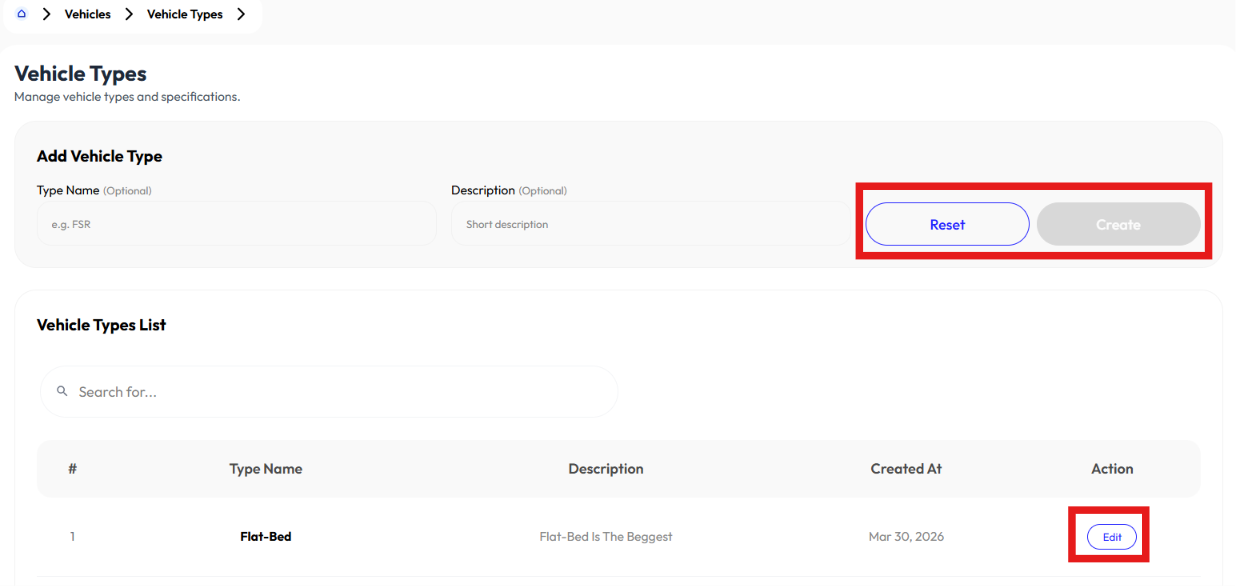
Add Vehicle Type
- Click add vehicle type button
- Enter name
- Enter description (optional)
- Click submit
Edit Vehicle Type
- Click edit button
- Update name
- Update description (optional)
- Click submit
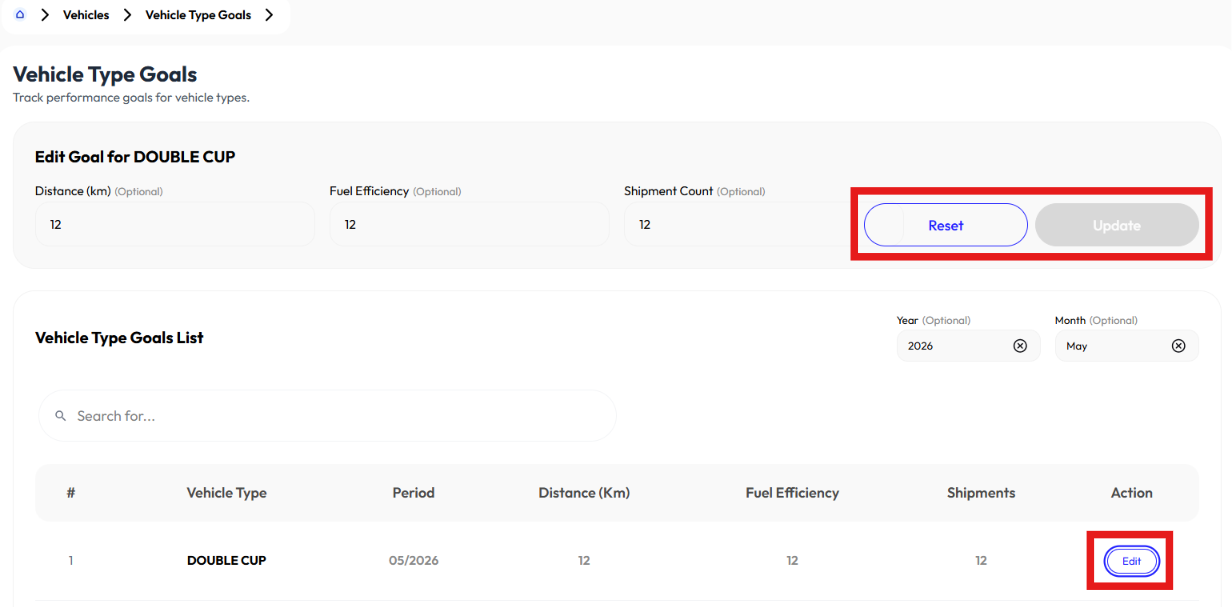
Vehicle Type Goals
For each vehicle type
- Enter distance
- Enter fuel efficiency
- Enter shipment count
- click save
Vehicle Groups
- User creates vehicle groups using the Add Vehicle Group button.
- User edits a group using the Edit button.
Add Vehicle Group
- Click add vehicle group button
- Enter name
- Enter description (optional)
- Click submit
Edit Vehicle group
- Click edit button
- Update name
- Update description (optional)
- Click submit
Vehicle Standards
- User creates vehicle maker, model and type using the Add Maker, Add Model, and Add Type buttons.
- User edits maker, model, and type using the Edit Maker, Edit Model and Edit Type button.
Add Maker
- Click add maker button
- Enter name
- Click submit
Edit Maker
- Click edit button
- Update name
- Click submit
Add Model
- Click add model button
- Enter name
- Click submit
Edit Model
- Click edit button
- Update name
- Click submit
Add Type
- Click add type button
- Enter name
- Click submit
Edit Type
- Click edit button
- Update name
- Click submit
Vehicles
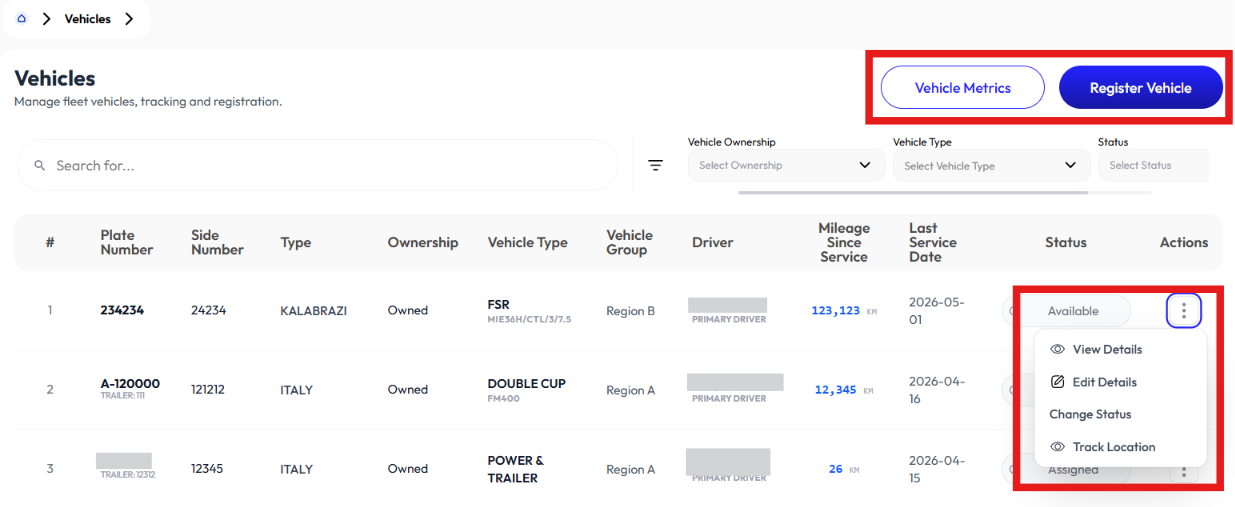
- User creates vehicles using the Register Vehicle button.
- User sees vehicle metric reports using the Vehicle Metrics button.
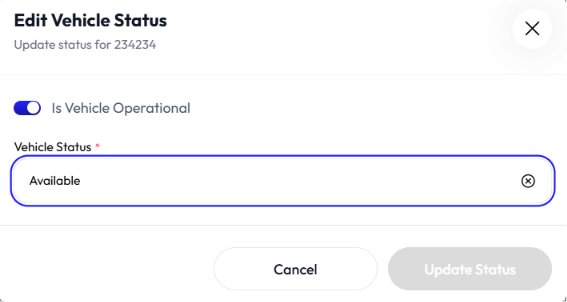
- user modifies the status of a vehicle using the Change Status button.
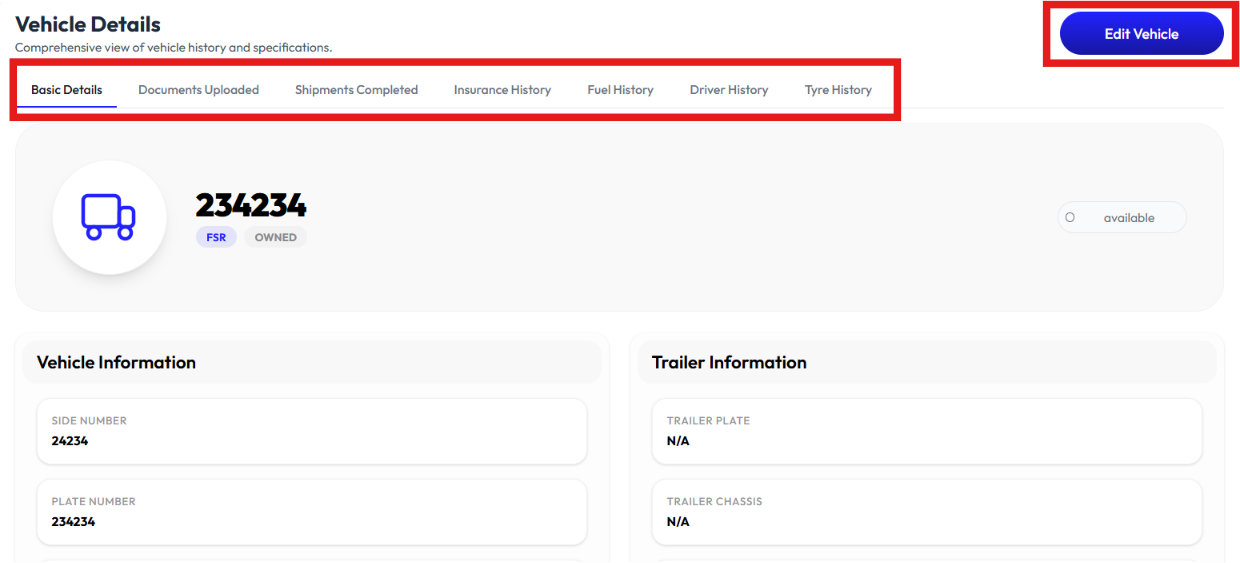
- User sees information using the Detail button
- User modifies detail information using the Edit Detail button.
- User tracks location using Track Location button.
- User searches for vehicles by their plate number in the search bar.
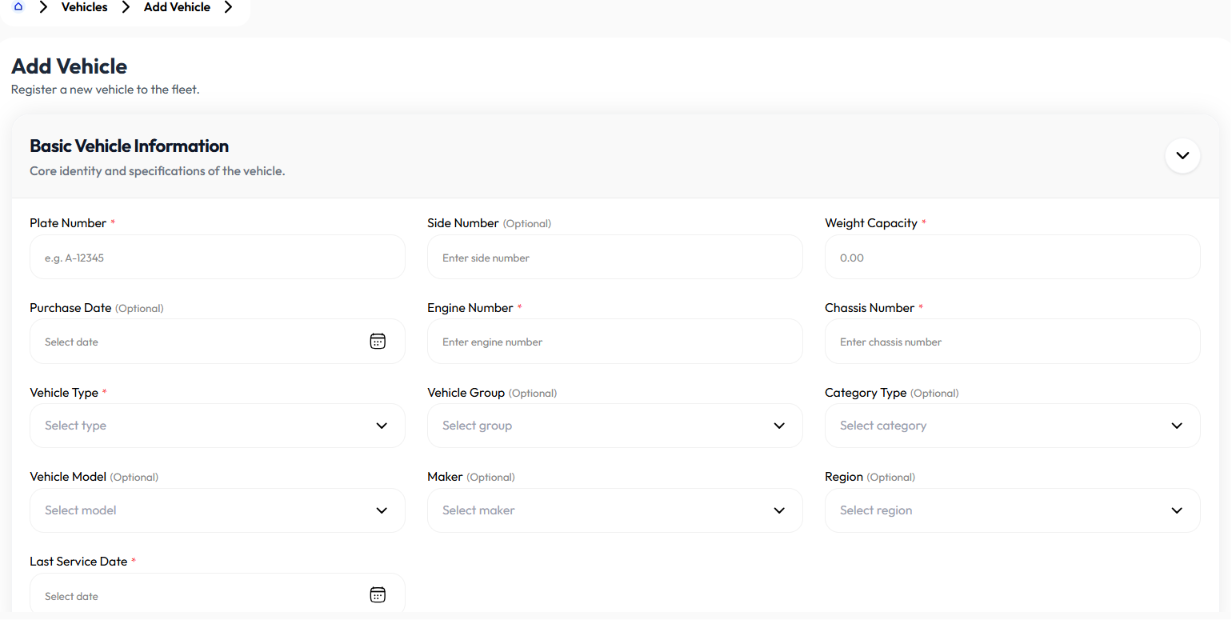
Add Vehicle
- Click register vehicle button
- Enter plate number
- Enter side number (optional)
- Enter weight capacity
- Enter purchase date (optional)
- Enter engine number
- Enter chassis number
- Select vehicle type. To add vehicle type check Add Vehicle Type
- Select vehicle group (optional). To add vehicle group check Add Vehicle Group
- Select category type (optional). To add type check Add Type
- Select vehicle model (optional). To add model check Add Model
- Select maker (optional). To add maker check Add Maker
- Enter last service date
- Select region (optional). To add region check Add Region
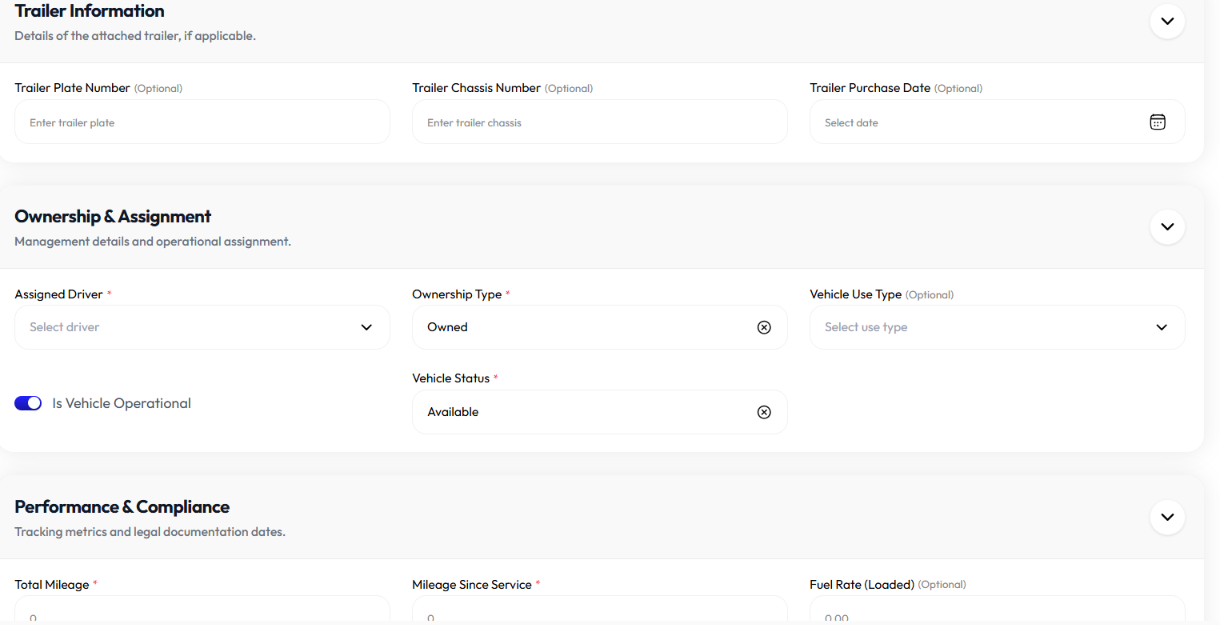
- Enter trailer plate number (optional)
- Enter trailer chassis number (optional)
- Enter trailer purchase date (optional)
- Select driver. To add driver check Add Driver
- Select ownership (owned, rental, leased)
- If ownership is rental or leased, select a transporter. To add transporter check Add Transporter
- Select vehicle use type
- Toggle is vehicle operational
- Select vehicle status
- Enter millage
- Enter millage since service
- Enter fuel rate loaded (optional)
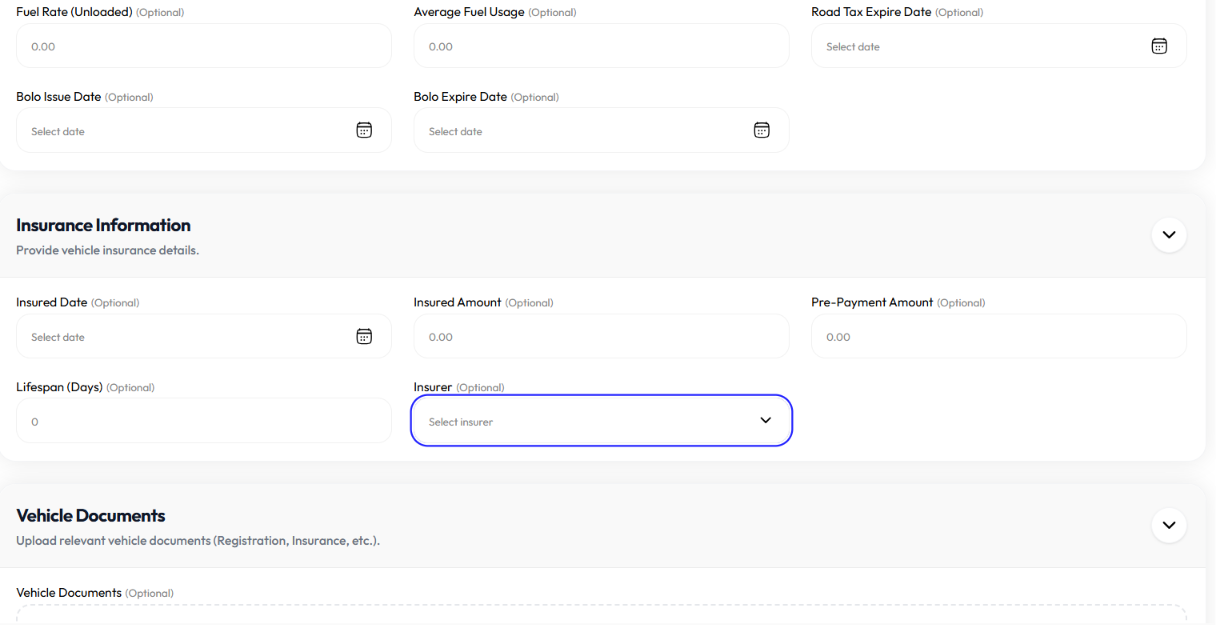
- Enter fuel rate unloaded (optional)
- Average fuel usage (optional)
- Road tax expire date (optional)
- Bolo issue date (optional)
- Bolo expire date (optional)
- Enter insurance date
- Enter insurance amount
- Enter prepayment amount
- Enter life span
- Select insurance provider. To add insurance provider check Add Insurance Provider
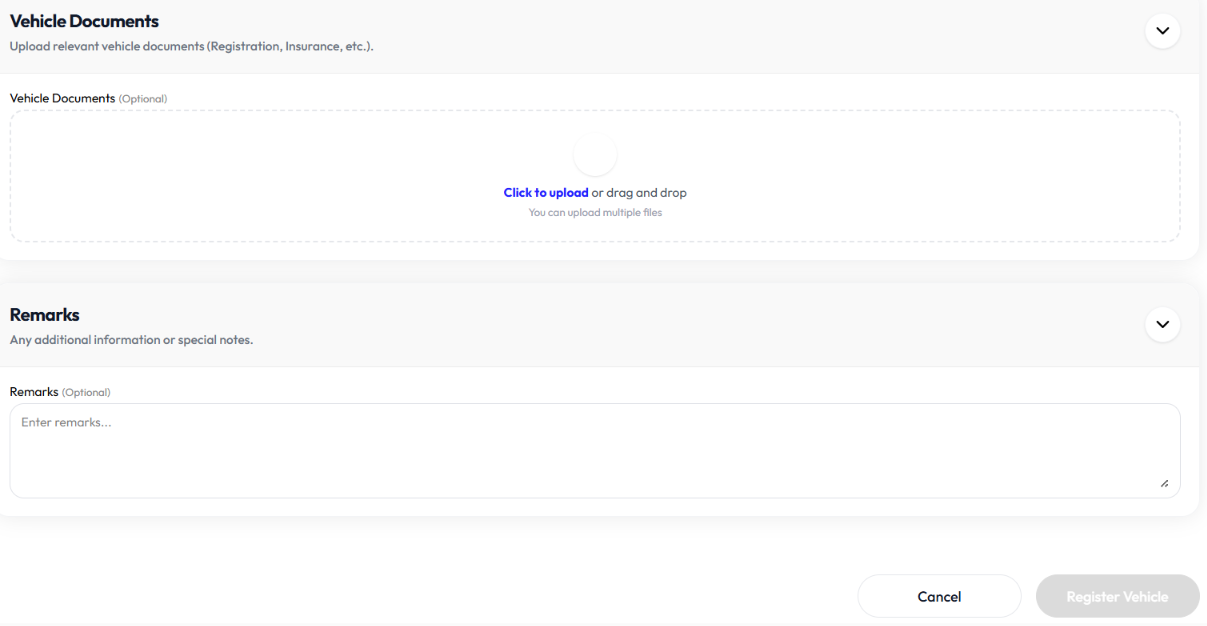
- Upload documents
- Remark (optional)
- Click register vehicle
Vehicle Metrics
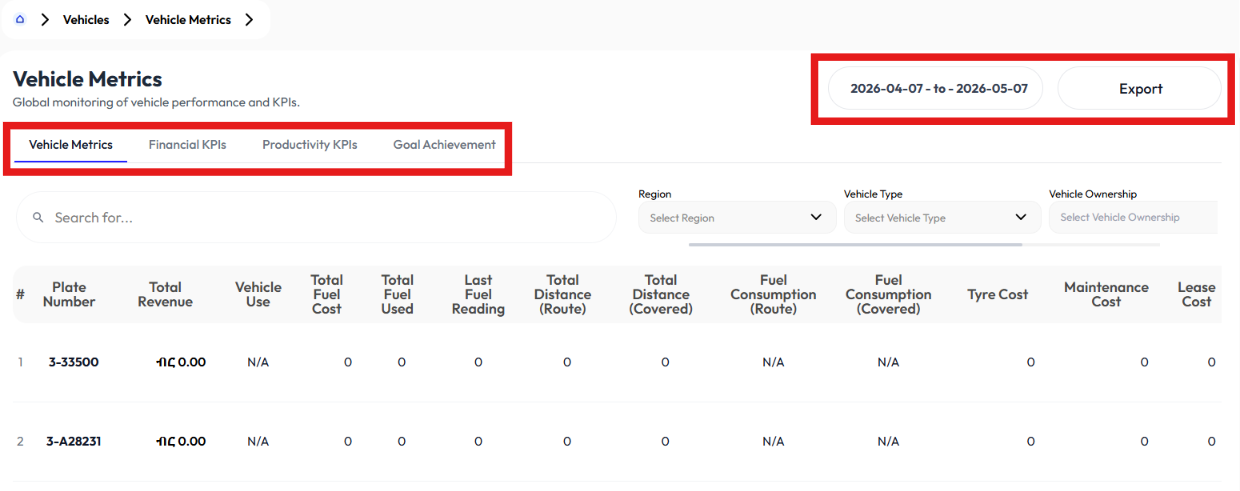
User can see reports generated, filter and export excel files by clicking on the export excel button for
- vehicle metrics
- financial KPIs
- productivity KPIs
- goal achievements
Change Status
- Click action button
- Set vehicle operational on or off
- If operational select available or assigned.
- Click update status
Detail Vehicle
- Click on action button
- Click details
- See information of:
- Basic details
- Documents uploaded
- Shipments completed
- Click add shipments button for a shortcut to add shipments. For more info check Add Shipments section.
- Insurance history
- Fuel history
- Driver history
- Tyre history
Edit Details
- Click action button
- Click edit
- Update plate number
- Update side number (optional)
- Update weight capacity
- Update purchase date (optional)
- Update engine number
- Update chassis number
- Select vehicle type. To add vehicle type check Add Vehicle Type
- Select vehicle group (optional). To add vehicle group check Add Vehicle Group
- Select category type (optional). To add type check Add Type
- Select vehicle model (optional). To add model check Add Model
- Select maker (optional). To add maker check Add Maker
- Update last service date
- Select region (optional). To add region check Add Region
- Update trailer plate number (optional)
- Update trailer chassis number (optional)
- Update trailer purchase date (optional)
- Select driver. To add driver check Add Driver
- Select ownership (owned, rental, leased)
- If ownership is rental or leased, select a transporter. To add transporter check Add Transporter
- Select vehicle use type
- Toggle is vehicle operational
- Select vehicle status
- Update millage
- Update millage since service
- Update fuel rate loaded (optional)
- Update fuel rate unloaded (optional)
- Average fuel usage (optional)
- Road tax expire date (optional)
- Bolo issue date (optional)
- Bolo expire date (optional)
- Update insurance date
- Update insurance amount
- Update prepayment amount
- Update life span
- Select insurance provider. To add insurance provider check Add Insurance Provider
- Upload documents
- Remark (optional)
- Click submit
Track Location
- Click action button
- Click track location
Leased Vehicles
- User creates vehicle lease agreements using the Add Leased Vehicle button.
- User sees information using Detail button.
- User modifies information using Edit button.
- User extends vehicle lease agreement using Extend button.
- User renews vehicle agreement using the Renew button.
- User terminates agreement using the Terminate button.
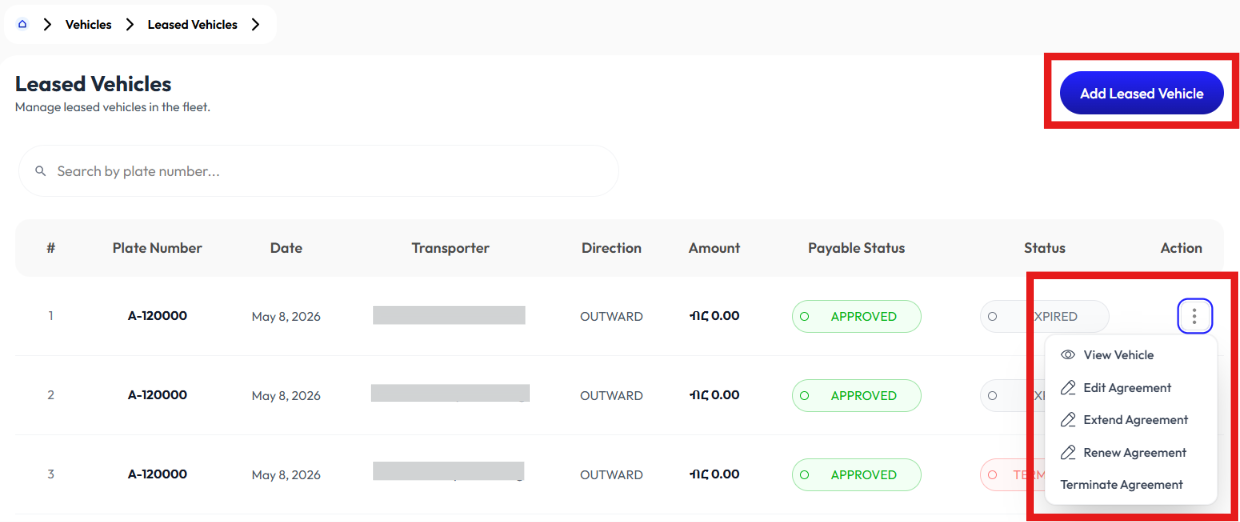
Add Leased Vehicle
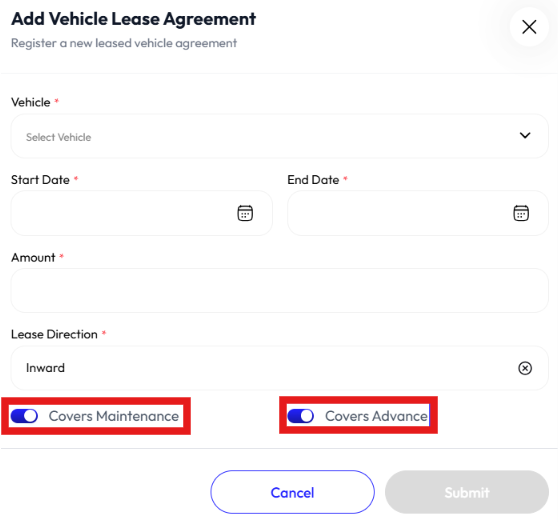
- Click add leased vehicle button
- Select a vehicle. To add a vehicle check Add Vehicle
- Enter amount (optional)
- Enter lease direction (inward, outward)
- Enter start date
- Enter end date
- Toggle covers maintenance
- Toggle covers advances
- Click submit
View Vehicle
- Click action
- Click view vehicle
- It will take you to Detail Vehicle
Edit Vehicle Agreement
- Click action button
- Click edit vehicle agreement
- Select a vehicle. To add a vehicle check Add Vehicle
- Enter amount (optional)
- Enter lease direction (inward, outward)
- Enter start date
- Enter end date
- Toggle covers maintenance
- Toggle covers advances
- Click submit
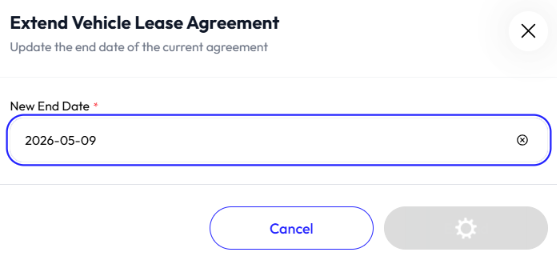
Extend Vehicle Agreement
- Click action button
- Click extend vehicle agreement
- Enter new date
- Click submit
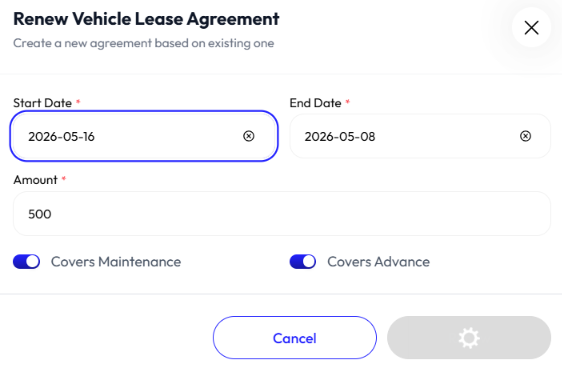
Renew Vehicle Agreement
- Click action button
- Click renew vehicle agreement
- Enter start date
- Enter end date
- Enter amount
- Toggle cover maintenance
- Toggle cover advance
- Click submit
Terminate Vehicle Agreement
- Click action button
- Click terminate
- Click ok