Appearance
Maintenance
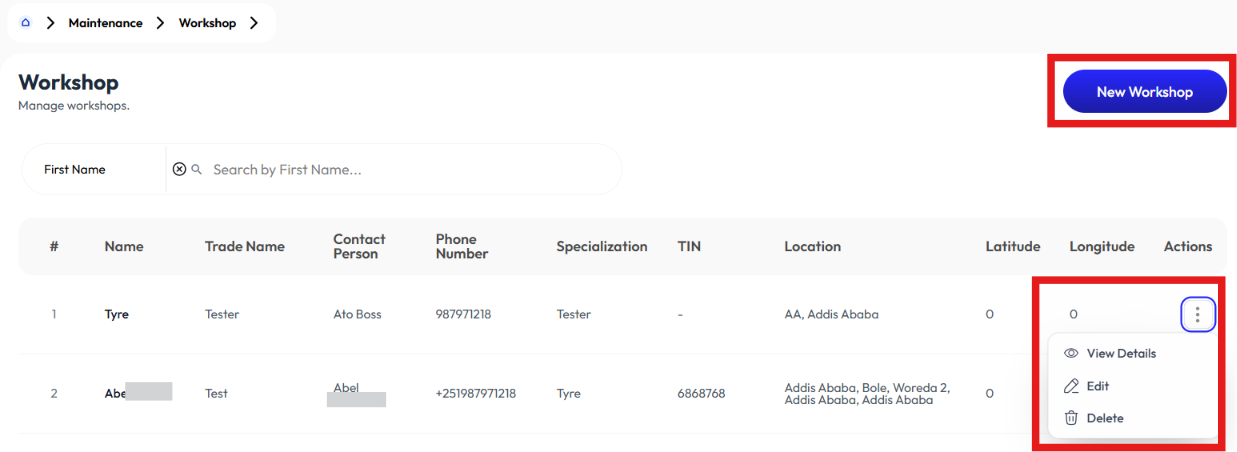
Workshop
- User creates workshop using the New Workshop button.
- User modifies workshop using the Edit button.
- User sees information using the Details button.
Add Workshop
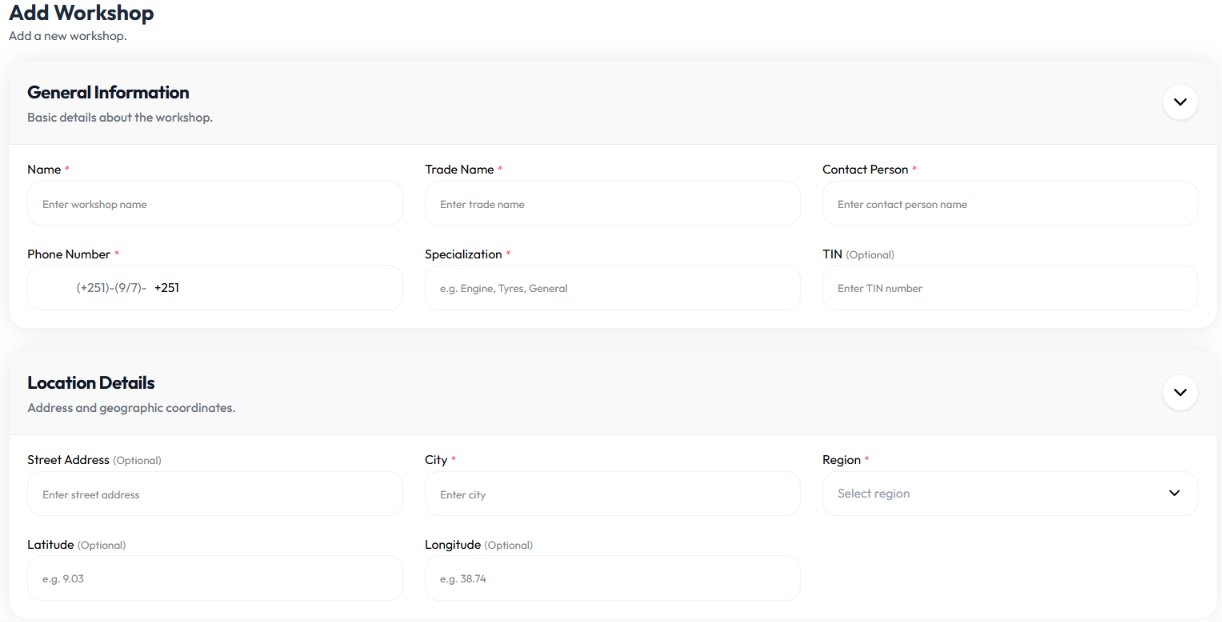
- Click new workshop button
- Enter name
- Enter trade name
- Enter contact person
- Enter phone number
- Enter specialization
- Enter TIN (optional)
- Enter street address (optional)
- Enter city (optional)
- Select region
- Enter latitude (optional)
- Enter longitude (optional)
- Click create workshop
Edit Workshop
- Click action button
- Click edit
- Update name
- Update trade name
- Update contact person
- Update phone number
- Update specialization
- Update TIN (optional)
- Update street address (optional)
- Update city (optional)
- Select region
- Update latitude (optional)
- Update longitude (optional)
- Click create workshop
Detail Workshop
- Click action button
- Click detail
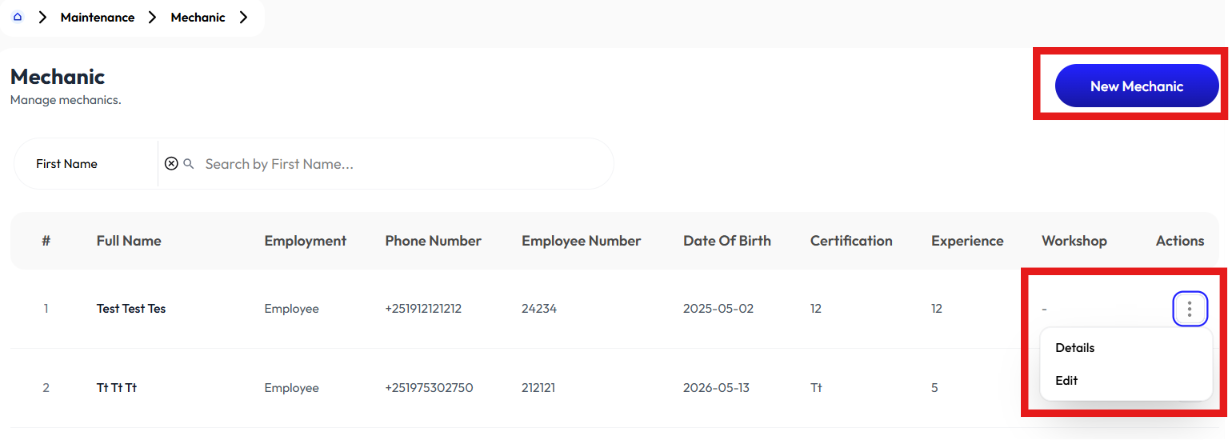
Mechanic
- User creates a mechanic using the New Mechanic button.
- User sees information using the Detail button.
- User modifies mechanic information using the Edit button.
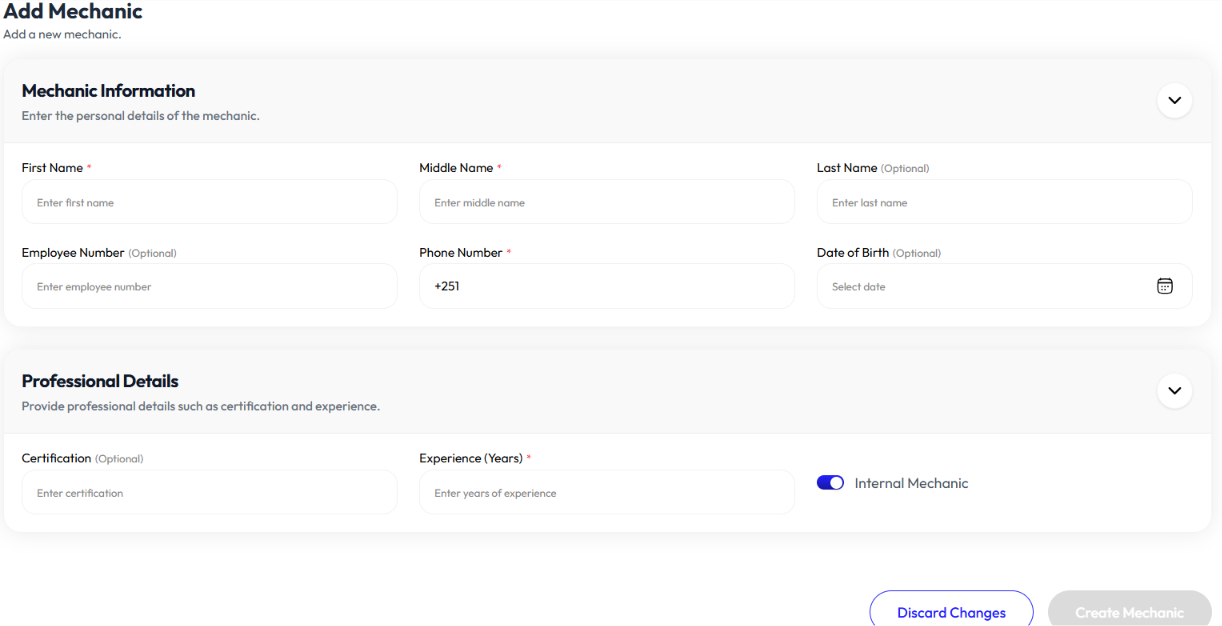
Add Mechanic
- Click new mechanic button
- Enter first name
- Enter middle name
- Enter last name (optional)
- Enter employee number (optional)
- Enter phone number
- Enter date of birth (optional)
- Enter certification (optional)
- Enter experience
- Toggle internal mechanic
- If not internal mechanic, select workshop
- Click submit
Detail Mechanic
- Click action button
- Click detail
Edit Mechanic
- Click action button
- Click edit
- Update first name
- Update middle name
- Update last name (optional)
- Update employee number (optional)
- Update phone number
- Update date of birth (optional)
- Update certification (optional)
- Update experience
- Toggle internal mechanic
- If not internal mechanic, select workshop
- Click submit
Inspection
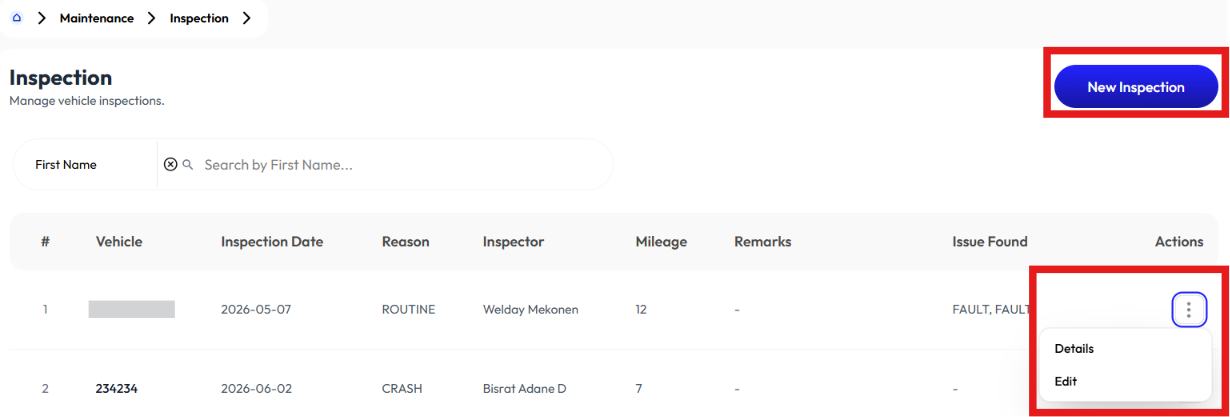
- User creates inspection using the New Inspection button.
- User modifies inspection using the Edit button.
- User sees information using the Detail button.
Add Inspection
- Click new inspection button
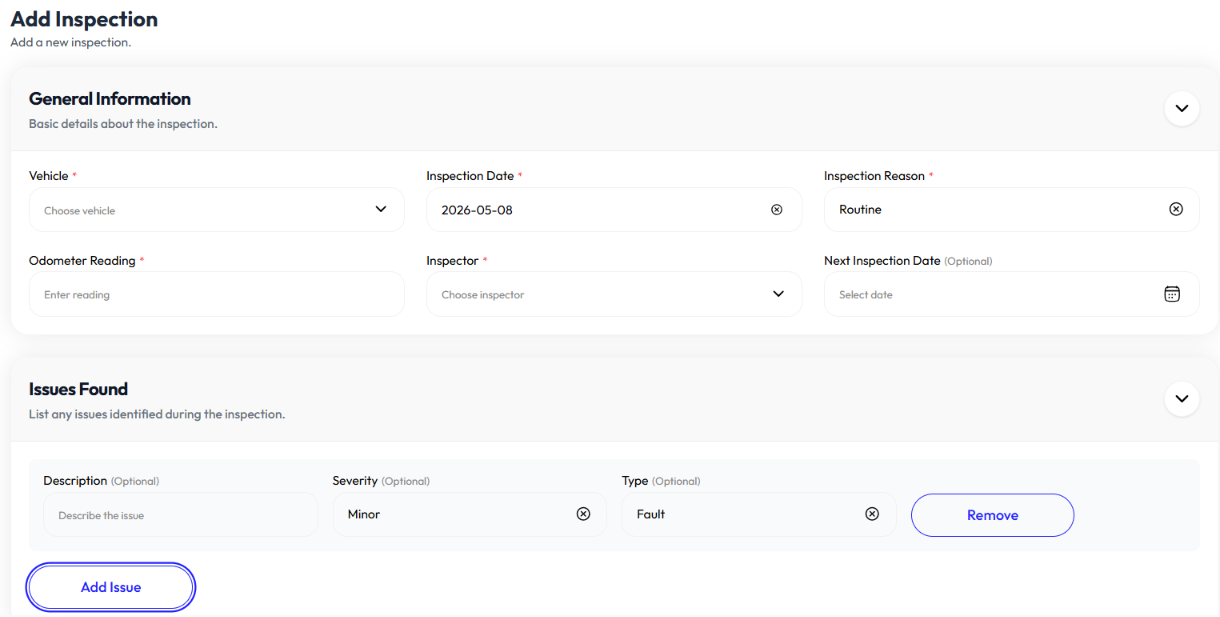
- Select vehicle. To add vehicle check Add Vehicle
- Enter inspection date
- Select inspection reason (routine, crash, other)
- Enter odometer reading
- Select inspector
- Enter next inspection date
- Click add issue to add issues
- Enter issue
- Select severity (minor, moderate, critical)
- Select issue type (damage, fault, other)
- Click add to add more than one issue
- Enter remark (optional)
- Click create inspection
Edit Inspection
- Click action button
- Click edit
- Select vehicle. To add vehicle check Add Vehicle
- Update inspection date
- Select inspection reason (routine, crash, other)
- Update odometer reading
- Select inspector
- Update next inspection date
- Click add issue to add issues
- Update issue
- Select severity (minor, moderate, critical)
- Select issue type (damage, fault, other)
- Click add to add more than one issue
- Update remark (optional)
- Click submit
Detail Inspection
- Click action button
- Click edit
Service Record
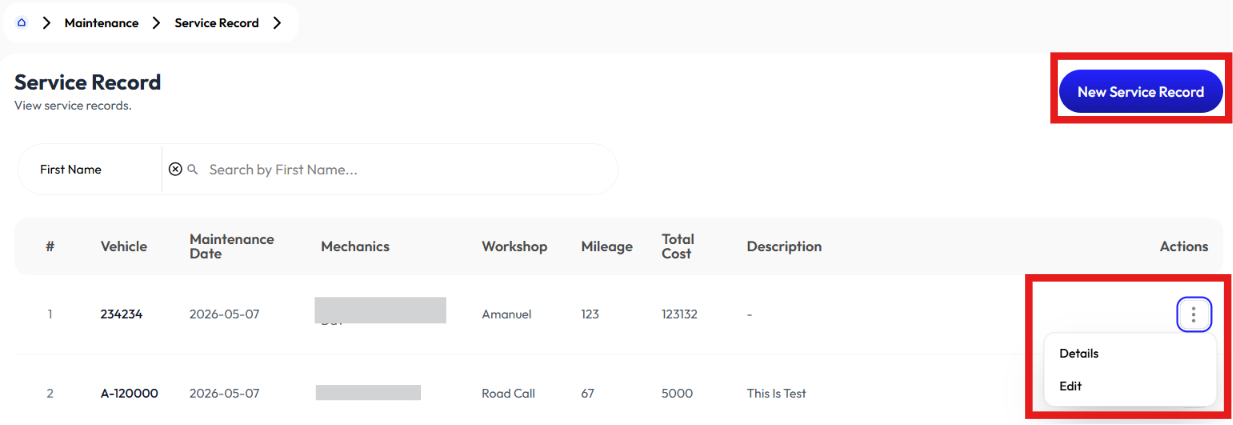
- User creates service record using the New Service Record button.
- User modifies a service record using the Edit button.
- User sees information using the Details button.
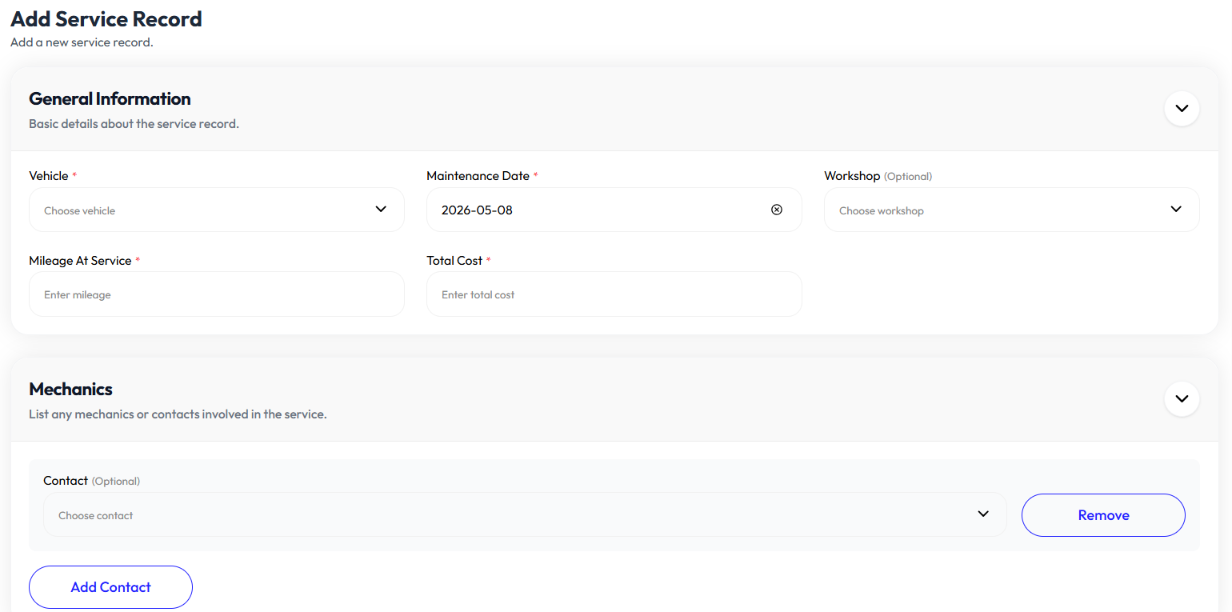
Add Service Record
- Click new service record button
- Select vehicle. To add vehicle check Add Vehicle
- Enter maintenance date
- Select workshop (optional)
- Enter mileage at service
- Enter total cost
- Select contact. To add contact check Add Contact
- Click add contact button to add more than one contact
- Enter description (optional)
- Click create service record
Edit Service Record
- Click action button
- Click edit
- Select vehicle. To add vehicle check Add Vehicle
- Update maintenance date
- Select workshop (optional)
- Update mileage at service
- Update total cost
- Select contact. To add contact check Add Contact
- Click add contact button to add more than one contact
- Update description (optional)
- Click submit
Detail Service Record
- Click action button
- Click detail
Service Task
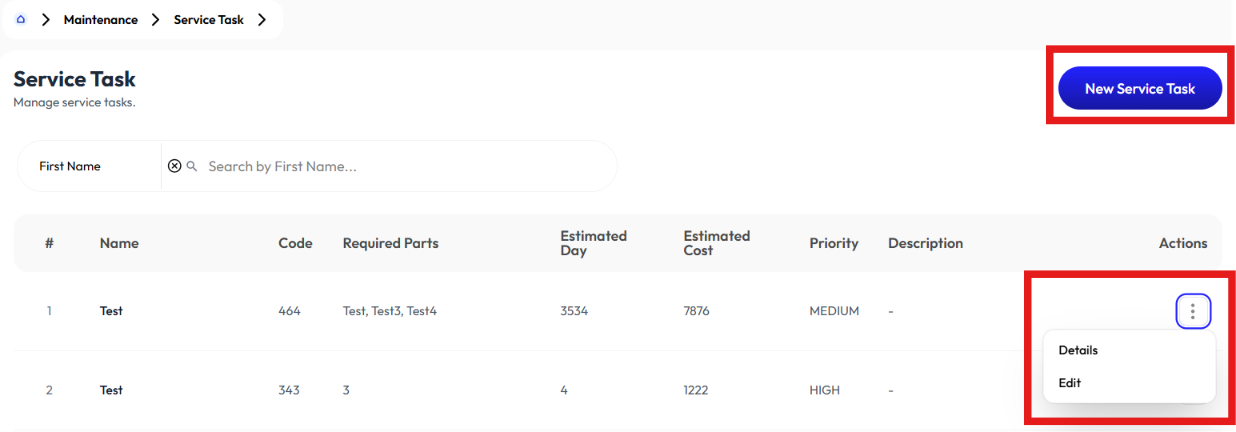
- User creates service task using the New Service Task button.
- User modifies service task using the Edit button.
- User sees detail information using the Detail button.
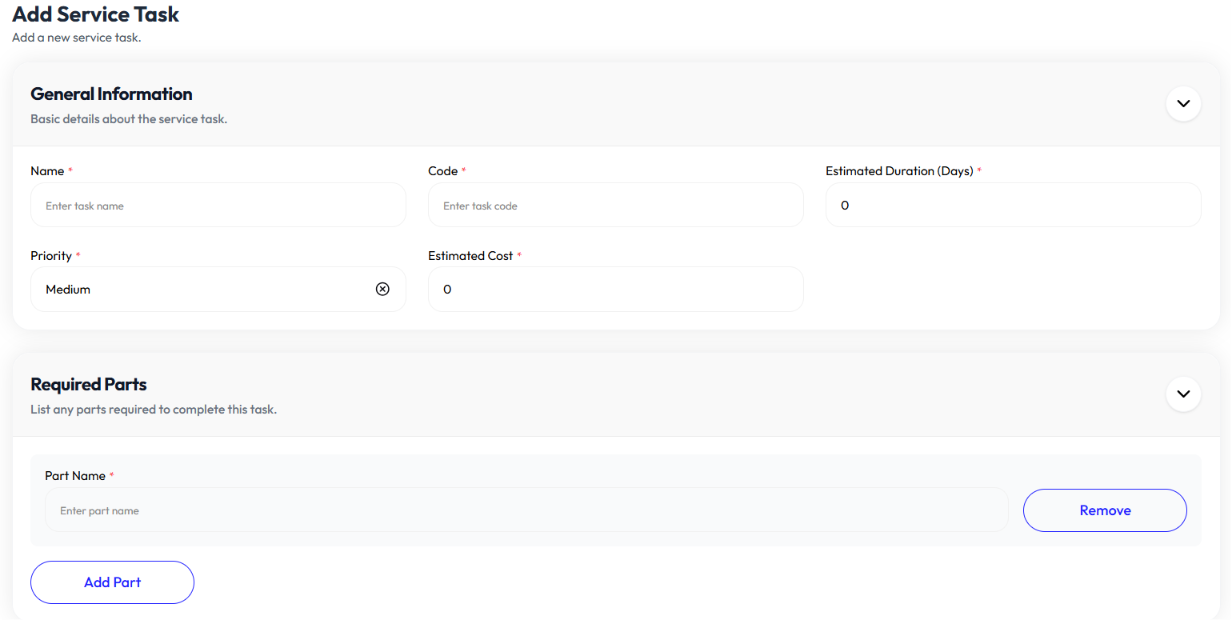
Add Service Task
- Click new service task button
- Enter name
- Enter code
- Enter estimated duration
- Select priority (high, medium, low)
- Enter estimated cost
- Enter part name
- Click remove to remove a part
- Click add part to add more than one part
- Enter description (optional)
- Click create service task button
Edit Service Task
- Click action button
- Click edit
- Update name
- Update code
- Update estimated duration
- Select priority (high, medium, low)
- Update estimated cost
- Update part name
- Click remove to remove a part
- Click add part to add more than one part
- Update description (optional)
- Click create service task button
Detail Service Task
- Click action button
- Click detail
Service Reminder
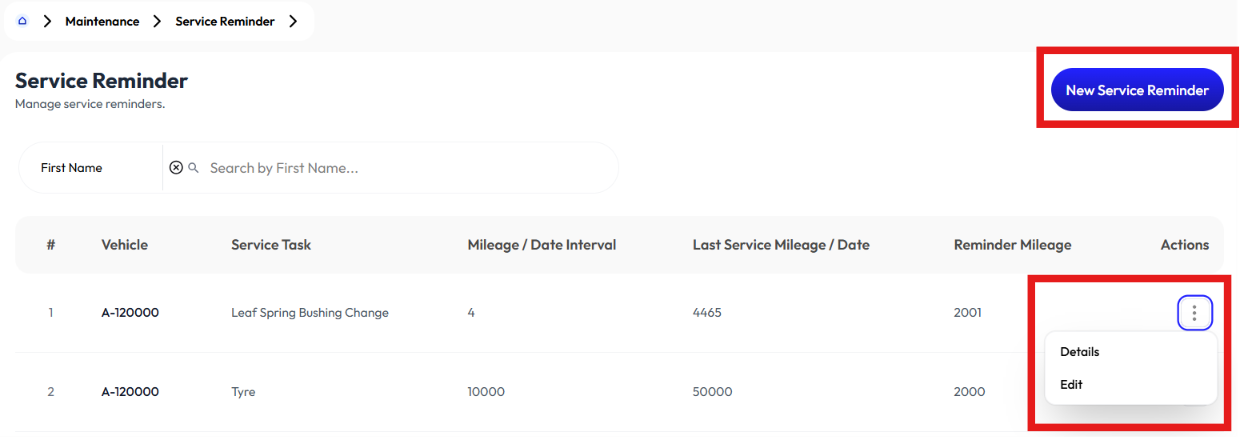
- User creates service reminder using the New Service Reminder button.
- User modifies service reminder using the Edit button.
- User sees information using the Delete button.
Add Service Reminder
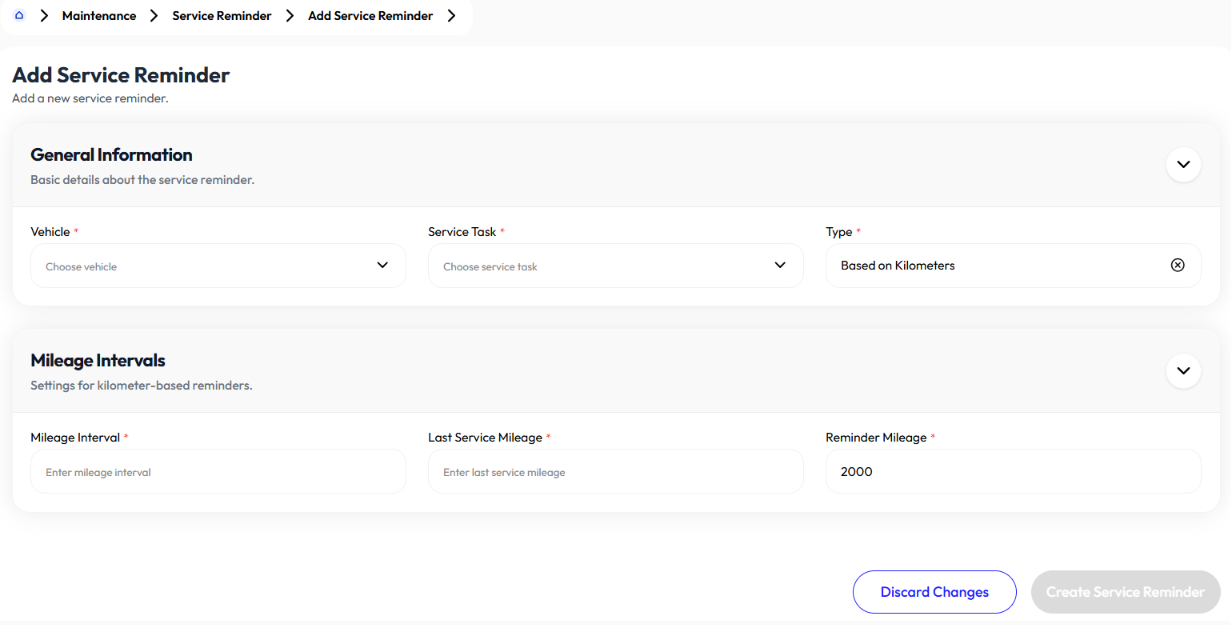
- Click new service reminder button
- Select vehicle. To add vehicle check Add Vehicle
- Select service task. To add service task check Add Service Task
- Select type
- Based on kilometers:
- Enter mileage interval
- Enter last service mileage
- Enter reminder mileage
- Based on time intervals:
- Enter time interval
- Enter last service date
- Enter reminder days
- Based on kilometers:
- Click submit
Edit Service Reminder
- Click edit button
- Select vehicle. To add vehicle check Add Vehicle
- Select service task. To add service task check Add Service Task
- Select type
- Based on kilometers:
- Update mileage interval
- Update last service mileage
- Update reminder mileage
- Based on time intervals:
- Update time interval
- Update last service date
- Update reminder days
- Based on kilometers:
- Click submit
Detail Service Reminder
- Click action button
- Click detail
Service Type
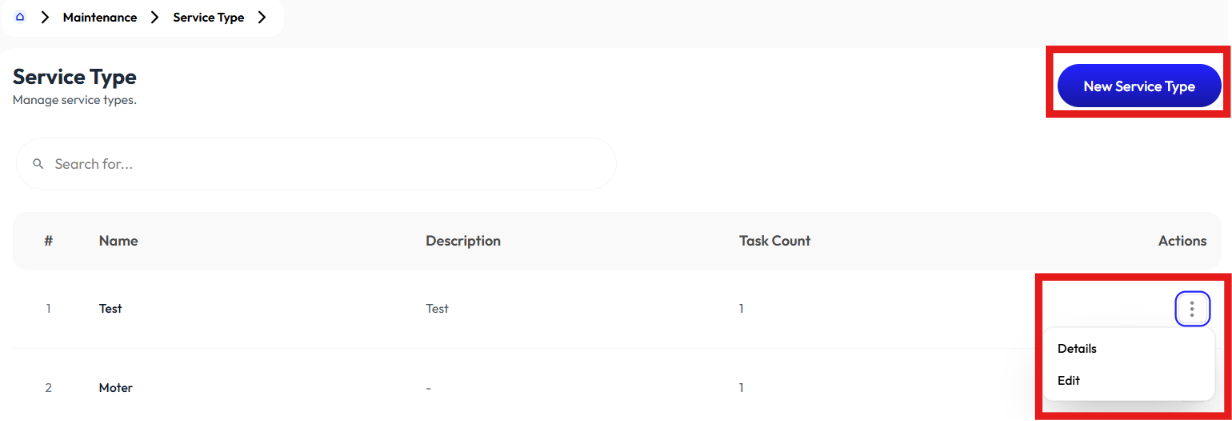
- User creates new service type using the New Service Type button.
- User modifies a service type using the Edit button.
- User sees detail information using the Details button.
Add Service Type
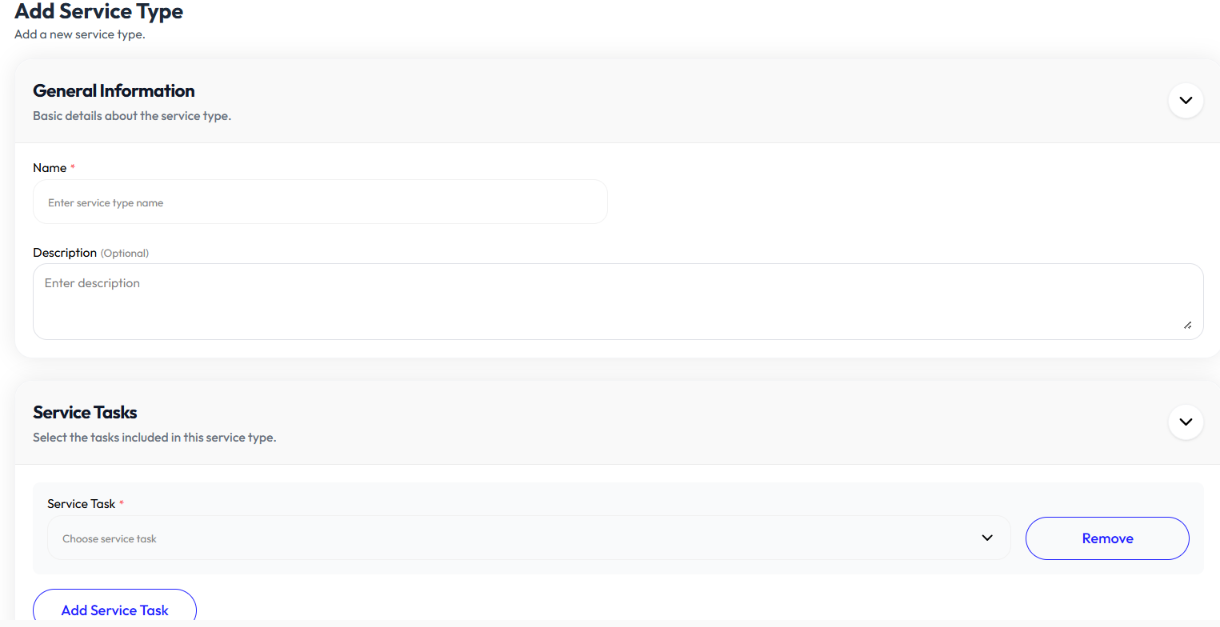
- Click new service type button
- Enter name
- Enter description (optional)
- Select service task. To add service task check Add Service Task
- Click remove to remove service task
- Click add service task button to add more than one service task
- Click create service type
Edit Service Type
- Click action button
- Click edit
- Update name
- Update description (optional)
- Select service task. To add service task check Add Service Task
- Click remove to remove service task
- Click add service task button to add more than one service task
- Click create service type
Detail Service Type
- Click action button
- Click details
Work Order
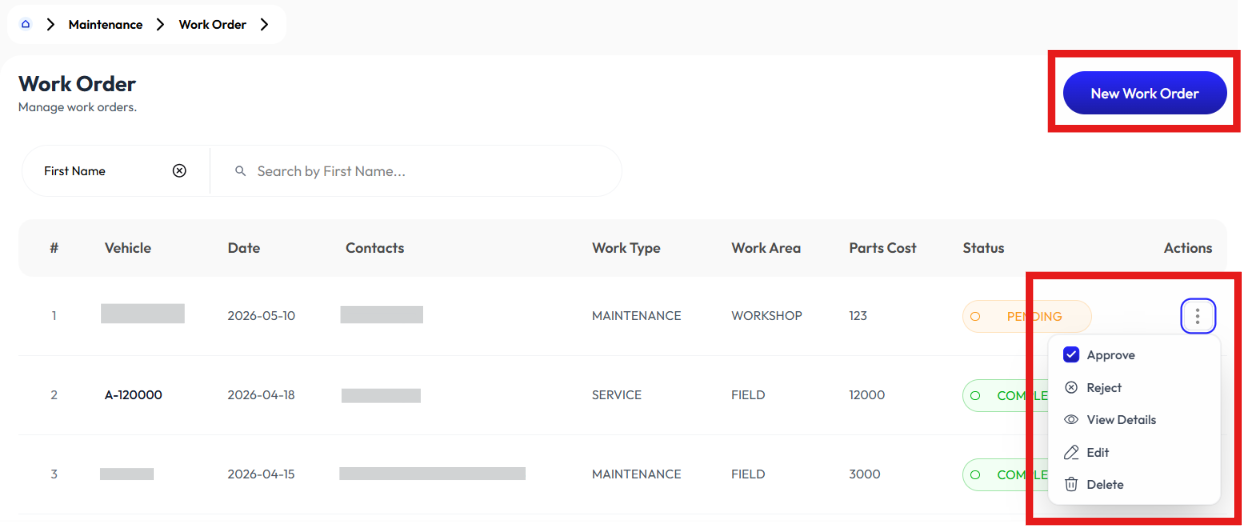
- User creates work order using the New Work Order button.
- User modifies work order using the Edit button.
- User approves or rejects it using Approve and Reject button.
- User sees information using the Detail button.
Add Work Order
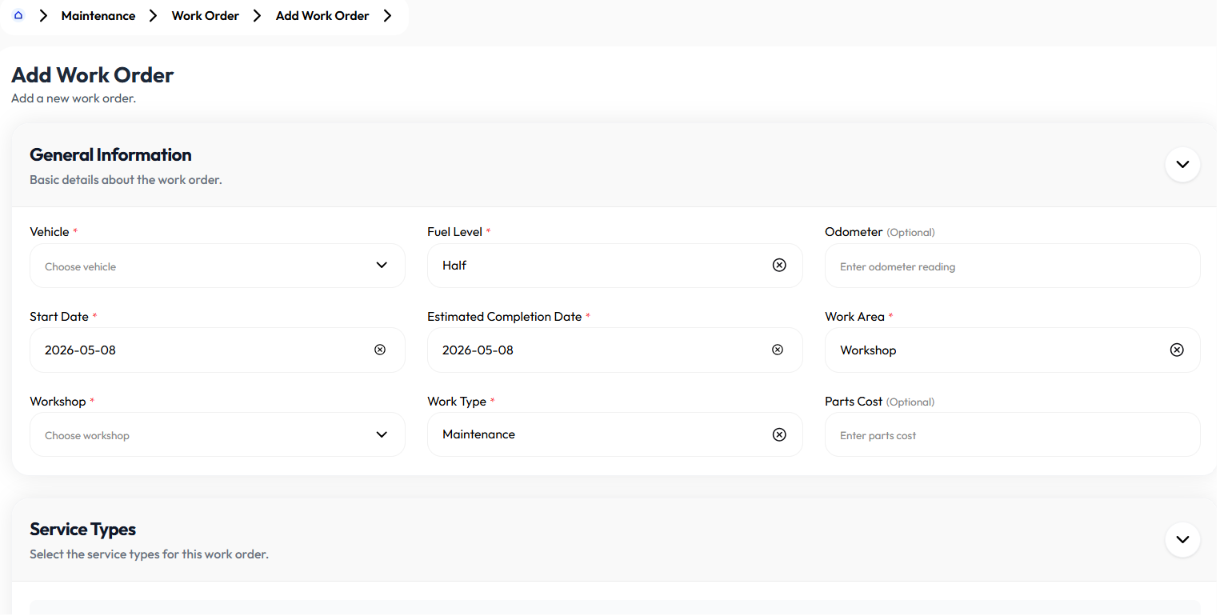
- Click new work order button
- Select vehicle. To add vehicle check Add Vehicle
- Select fuel level (full, third, half, quarter, empty)
- Enter odometer (optional)
- Enter start date
- Enter estimated completion date
- Select work area (workshop, field, other)
- Select workshop. To add workshop check Add Workshop
- Select work type (maintenance, overhaul, service, accident, other)
- Enter parts cost (optional)
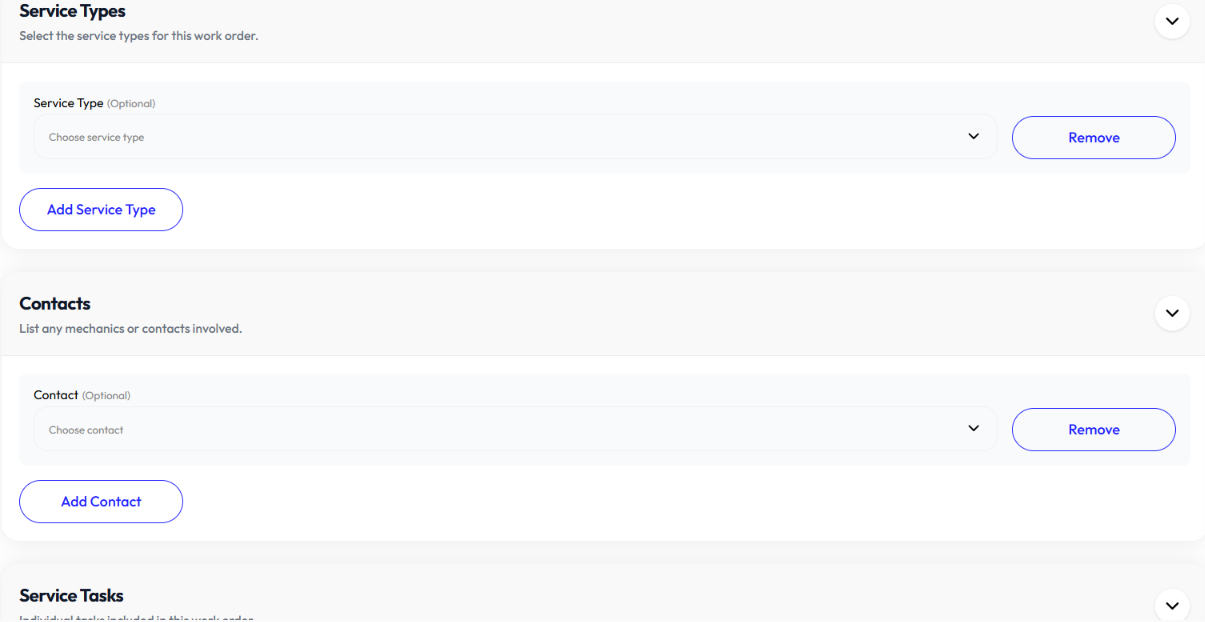
- Select service type (optional). To add service type check Add Service Type
- Click remove to remove a service type
- Click add service type to add more than one service type
- Select contact (optional). To add contact check Add Contact
- Click remove to remove a contact
- Click add contact to add more than one service type
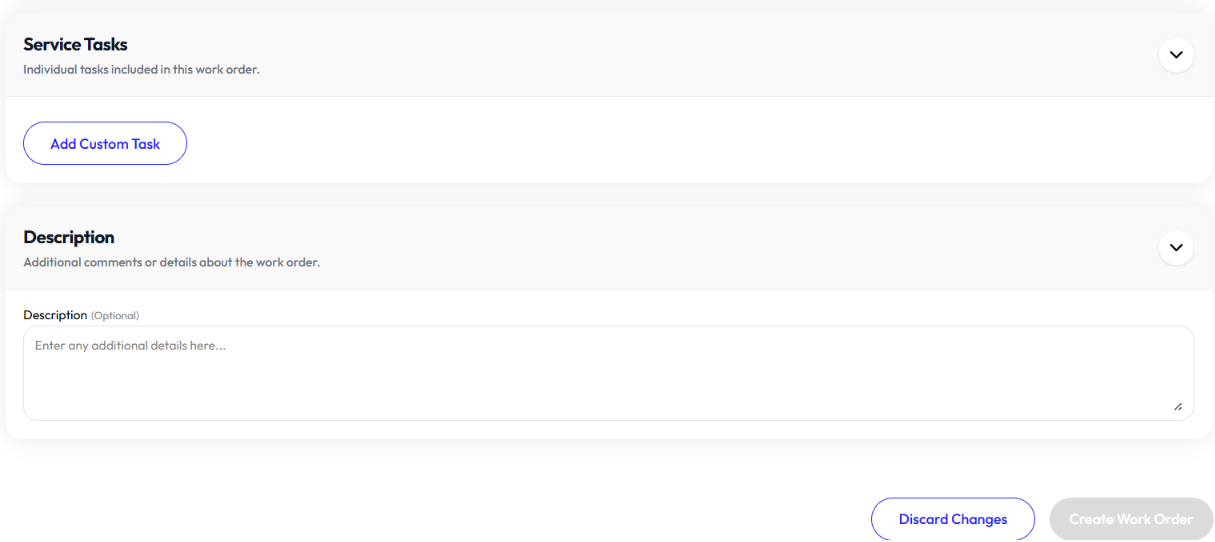
- Click add custom task to add a service task
- Select service task. To add service task check Add Service Task
- Enter code (optional)
- Enter status(optional)
- Enter task start time
- Enter task end time
- Enter required parts (optional)
- Enter description (optional)
- Click create work order
Edit Work Order
- Click action button
- Click edit
- Select vehicle. To add vehicle check Add Vehicle
- Select fuel level (full, third, half, quarter, empty)
- Update odometer (optional)
- Update start date
- Update estimated completion date
- Select work area (workshop, field, other)
- Select workshop. To add workshop check Add Workshop
- Select work type (maintenance, overhaul, service, accident, other)
- Update parts cost (optional)
- Select service type (optional). To add service type check Add Service Type
- Click remove to remove a service type
- Click add service type to add more than one service type
- Select contact (optional). To add contact check Add Contact
- Click remove to remove a contact
- Click add contact to add more than one service type
- Click add custom task to add a service task
- Select service task. To add service task check Add Service Task
- Update code (optional)
- Update status(optional)
- Update task start time
- Update task end time
- Update required parts (optional)
- Update description (optional)
- Click create work order
Approve Work Order
- Click action button
- Click approve
- Click ok
Reject Work Order
- Click action button
- Click reject
- Click ok
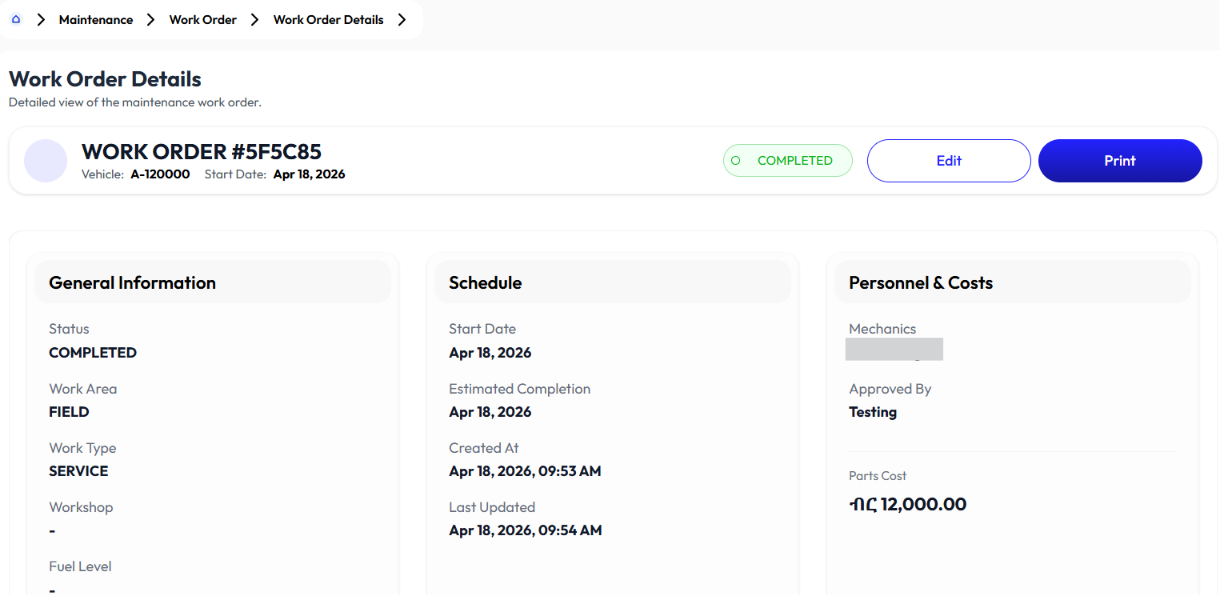
Detail Work Order
- Click action button
- Click details
Issue Report
- User creates issue report using the New Issue Report button.
Add Issue Report
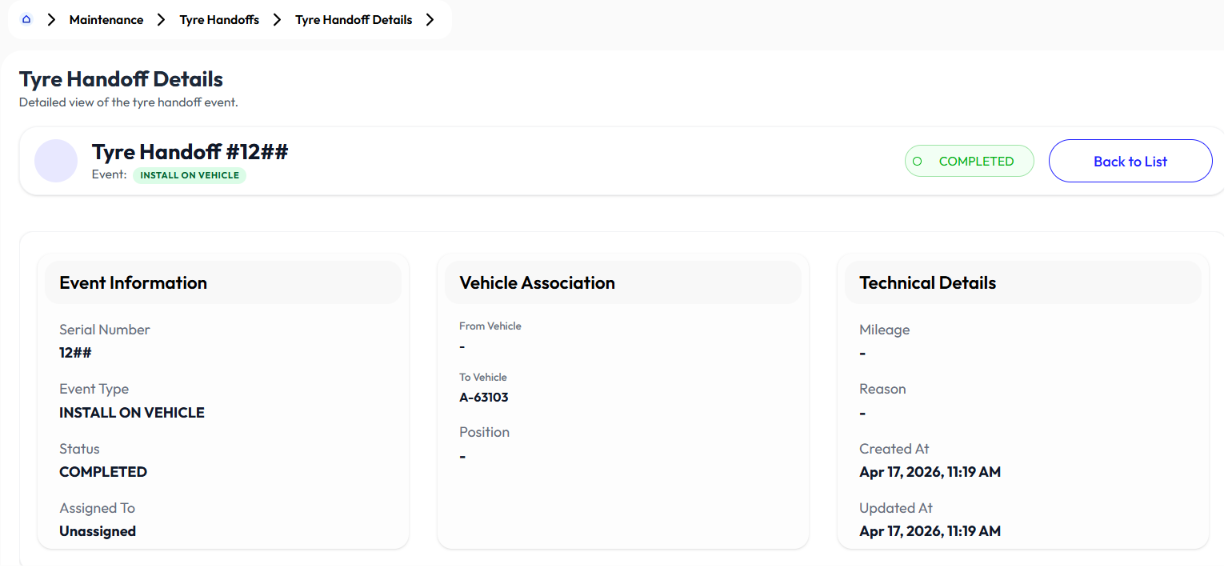
Tyre Handoffs
- User sees information using the Details button.
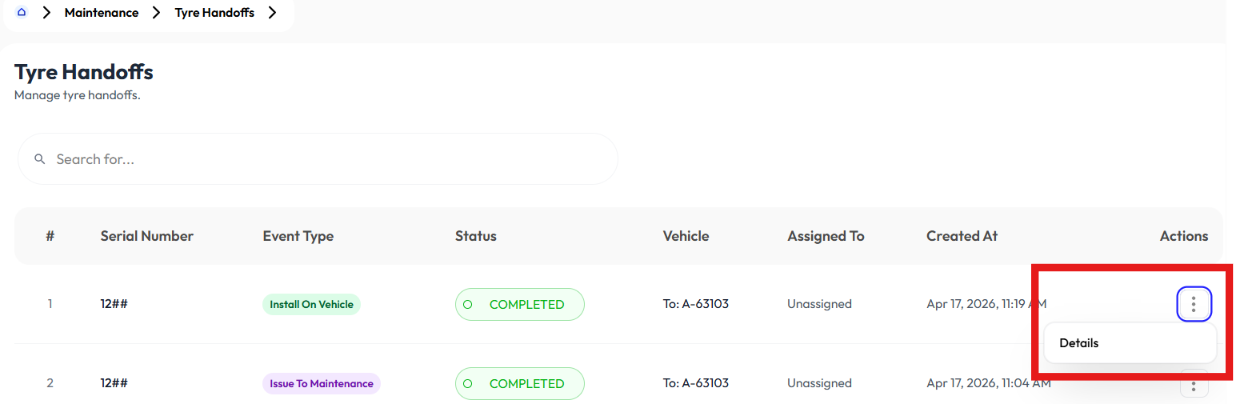
Detail Tire Handoff
- Click action button
- Click details