
Appearance
Settings
User management
Roles
- Admin creates roles using the Add Role button.
- Admin modifies role's information using the Edit button. Roles having "immutable" as their action are not modifiable.
- Admin searches for existing roles by inputting roles names in the search bar.
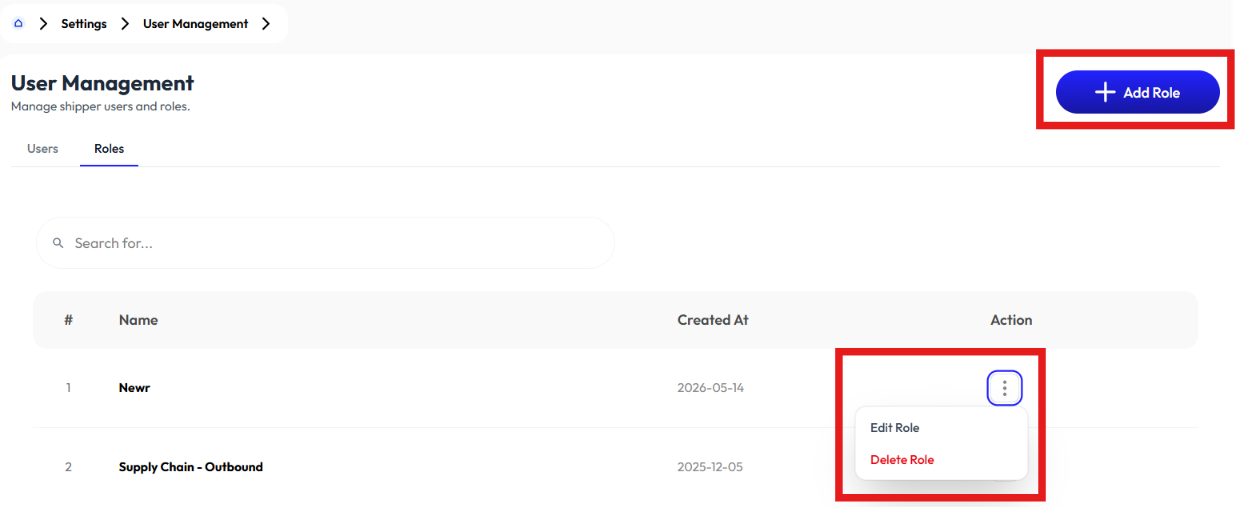
Add Role
- Click add role button
- Enter name
- Select type(admin or user)
- Enter description (optional)
- Select Permissions
- Click submit
Edit Role
- Click edit button
- Update name
- Update type(admin or user)
- Update description (optional)
- Update Permissions
- Click submit
Users
- Admin creates users using the Add User button.
- Admin modifies user using the Reset Password and Edit buttons.
- Admin searches for existing users by inputting user's names or role name in the search bar.
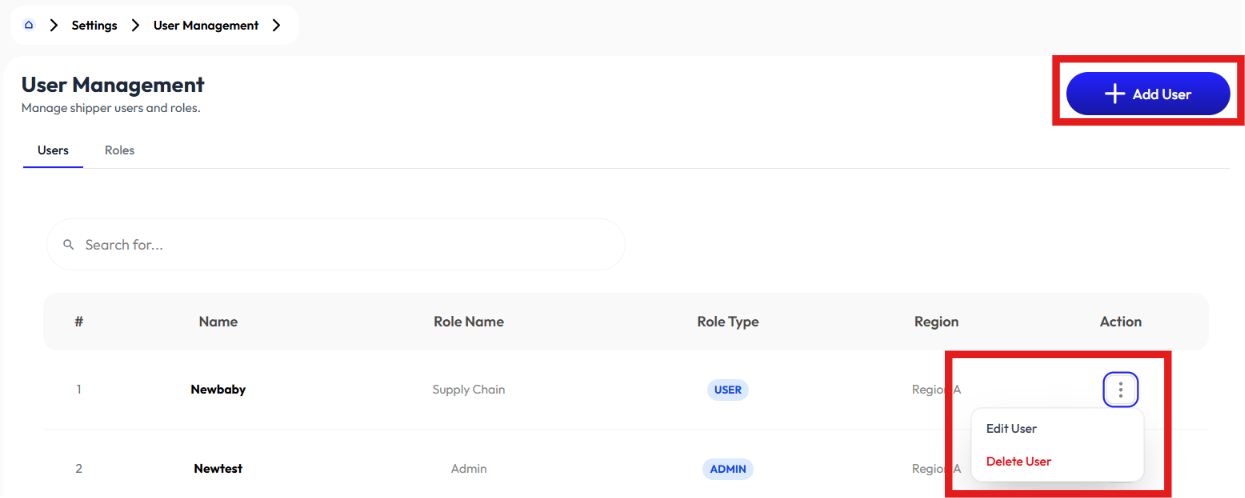
Add User
- Click add user button
- Enter username
- Enter password or click generate password
- Confirm password
- Select role. To add role check Add Role.
- Select region (optional)
- Click register
Reset Password
- Click reset password button.
- Enter password or click generate password
- Confirm password
- Click register
Edit User
- Click edit button
- Update user name
- Select role. To add role check Add Role.
- Select region (optional)
- Click submit
Commodity
- Admin creates commodities using the Add Commodity button.
- Admin modifies commodity using the Edit button.
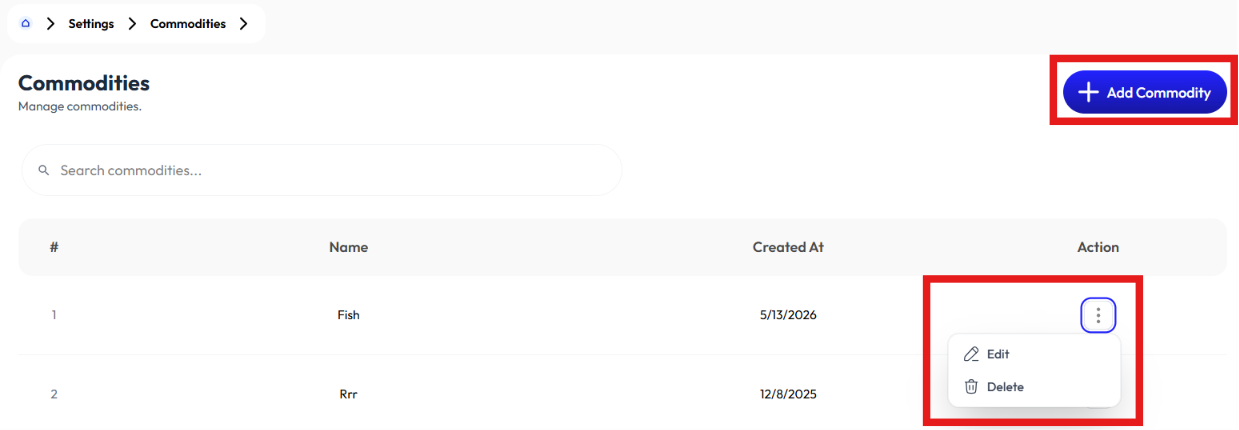
Add Commodity
- Click add commodity button
- Select shipper
- Enter name
- Click submit
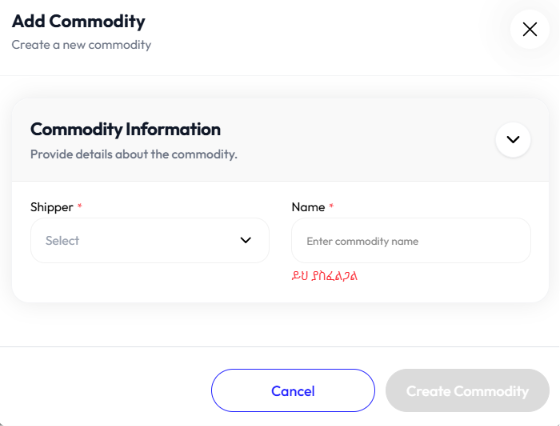
Edit commodity
- Click edit button
- Select shipper
- Update name
- Click submit
Packaging
- Admin creates commodities using the Add Packaging button.
- Admin modifies packaging's information using the Edit button.
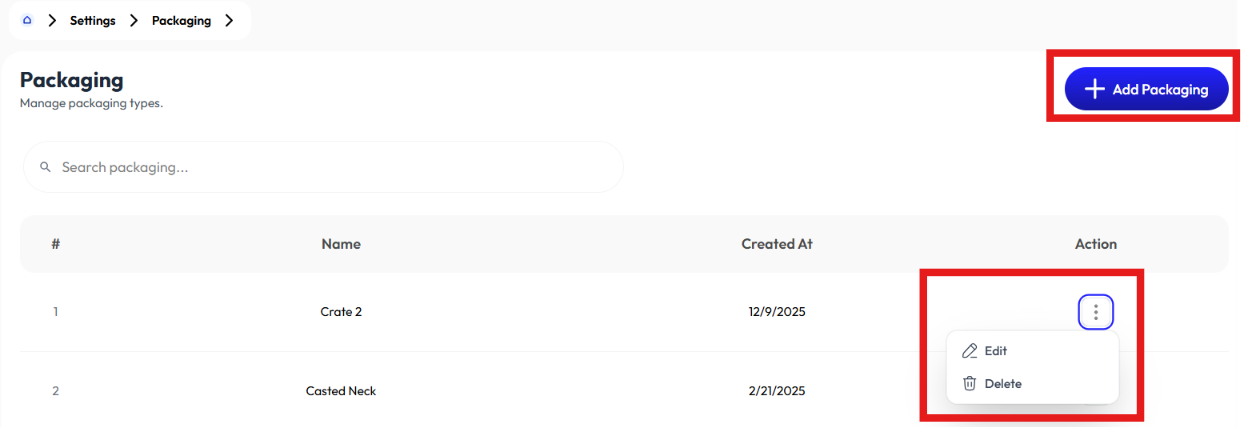
Add Packaging
- Click add packaging button
- Select shipper
- Enter name
- Click submit
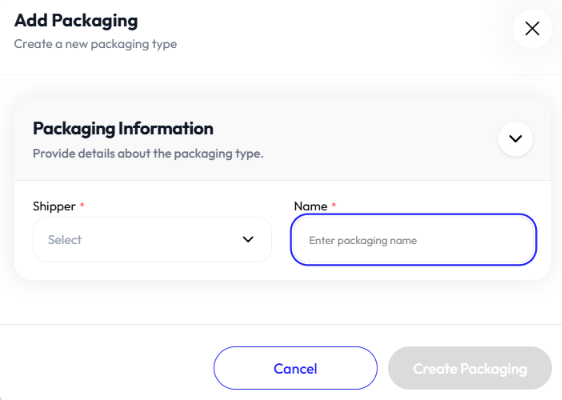
Edit Packaging
- Click edit button
- Select shipper
- Update name
- Click submit
Contract
- User creates contract using the Add Contract button.
- User sees Details and modifies routes.
Add Contract
- Click add contract button
- Select carrier. to add carrier check Carrier
- Select route. to add route check Routes
- Select commodity. to add commodities check Commodity
- Select packaging. to add packaging check Packaging.
- Select agent
- Select product types (inbound, outbound, and site transfer).
- Click add route button to add more routes
- Click submit
Contract Details
Add New Route
- Click add new route button
- Select route
- Select commodity
- Select packaging
- Select agent
- Select product types (inbound, outbound, site transfer)
- Click save route
Edit Route
- Click edit button
- Update commodity
- Update packaging
- Update agent
- Select product types (inbound, outbound, site transfer)
- Update waypoint
- Select vehicle type
- Enter amount
- Select type (per km, per quintal, per truck)
- Select product type (inbound, outbound, site transfer)
- Click add pricing to add more than one pricing for a waypoint
- Click save
Announcements
- Admin creates announcements using the Add Announcement button.
- Admin deletes announcement's using the Delete button.
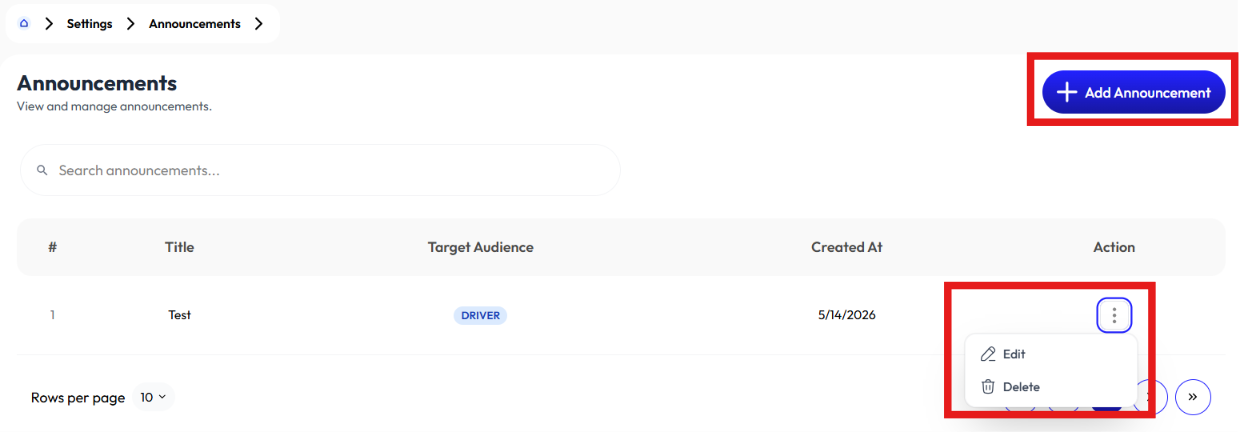
Add Announcement
- Click add announcement button
- Enter Title
- Enter message (optional)
- Select target audience (all users, drivers, mechanics)
Delete announcement
- Click delete button
- Click delete again