
Appearance
Customers
Customers
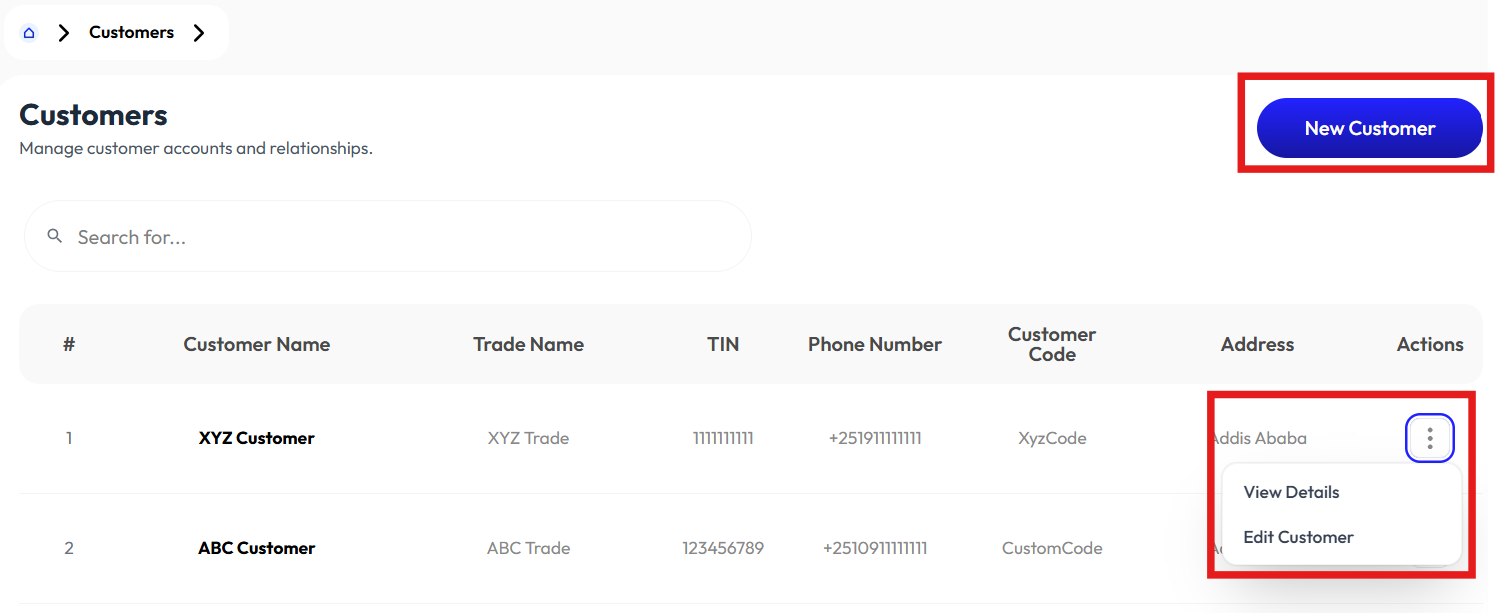
- User creates customer using the New Customer button.
- User sees information using Detail button.
- User modifies using the Edit button.
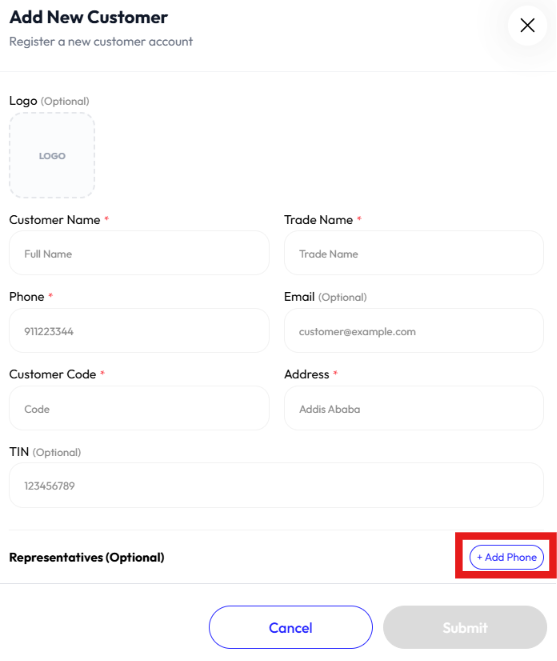
Add Customer
- Click new customer button
- click choose file to select an image
- Enter customer name
- Enter trade name
- Enter phone
- Enter email (optional)
- Enter customer code
- Enter address
- Enter TIN (optional)
- Click add phone to add a representatives (optional)
- Click submit
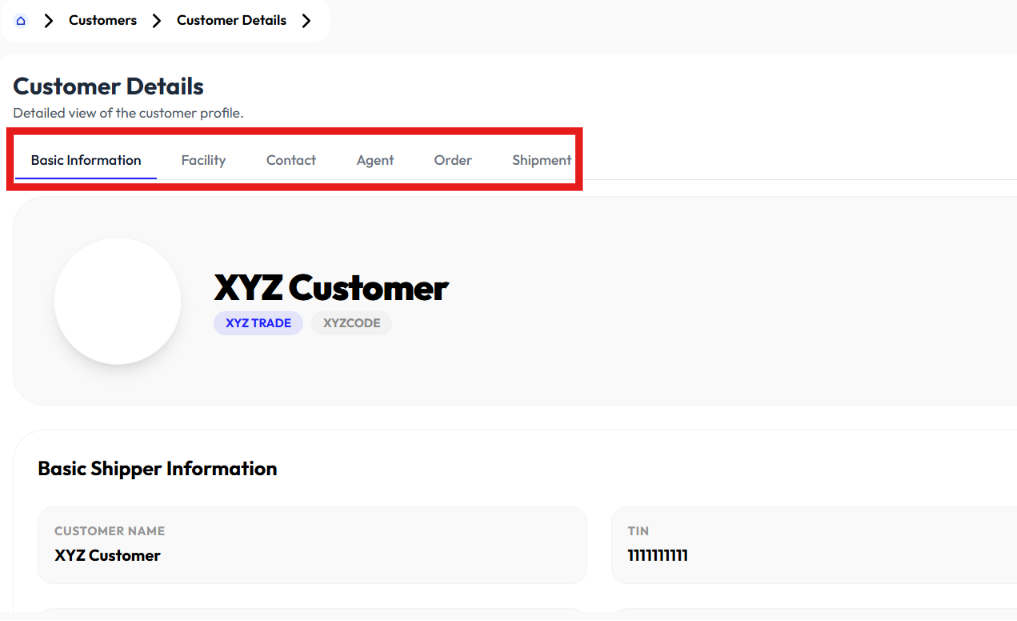
Detail Customer
- Click action button
- Click view details
- Click basic information, facility, contact, agent, order, and Shipment tabs
Edit Customer
- Click action button
- Click edit
- click choose file to select an image
- Update customer name
- Update trade name
- Update phone
- Update email (optional)
- Update customer code
- Update address
- Update TIN (optional)
- Click add phone to add a representatives (optional)
- Click submit
Agents
- User creates agent using the New Agent button.
- User modifies agent information using the Edit button.
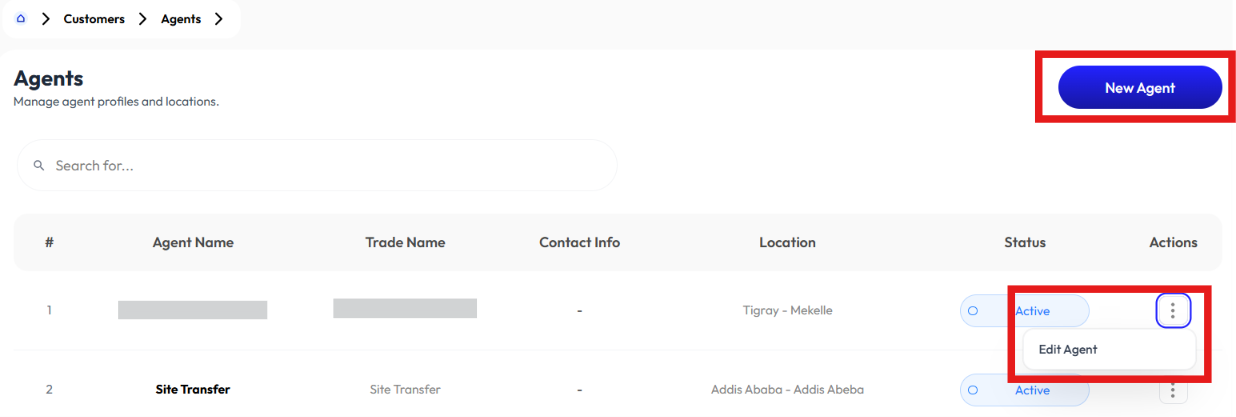
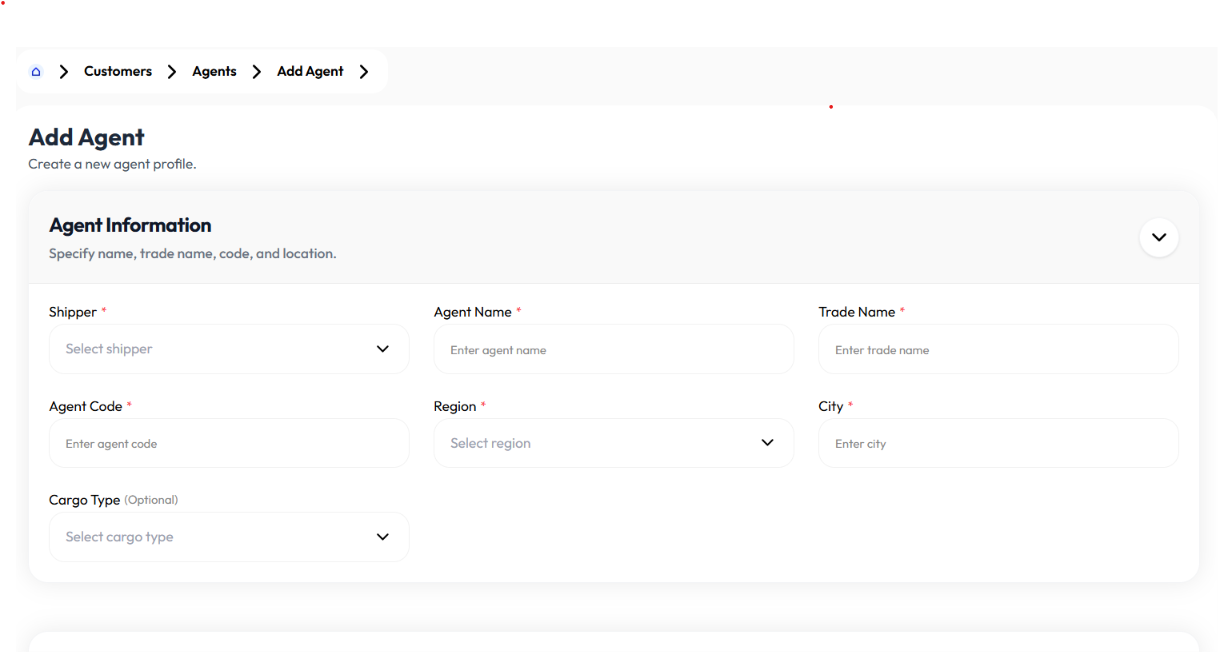
Add Agent
- Click new agent button
- Select shipper, to add a shipper check Add Customer
- Enter agent name
- Enter trade name
- Enter agent code
- Select region, to add region check Add region
- Enter city
- Select cargo type (inbound, outbound, site transfer) (optional)
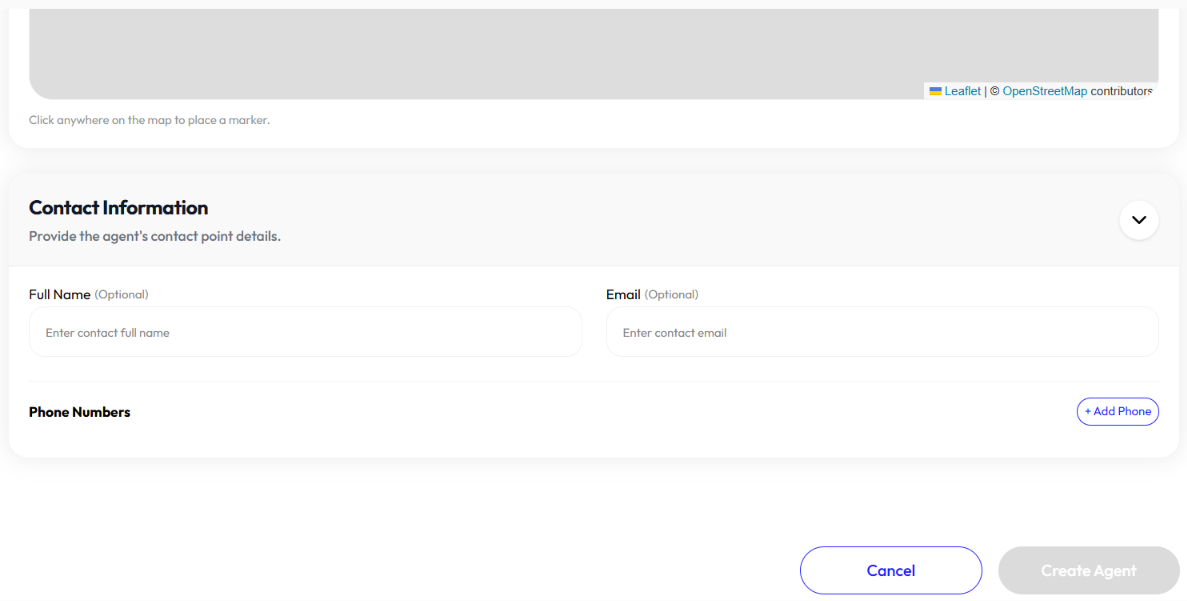
- Pick location on map
- Enter full name (optional)
- Enter email (optional)
- Enter phone number (optional)
- Click add phone number button to add more than one phone number
- Click remove to remove a phone number
- Click create agent
Edit Agent
- Click action button
- Click edit
- Select shipper, to add a shipper check Add Customer
- Update agent name
- Update trade name
- Update agent code
- Select region, to add region check Add region
- Update city
- Select cargo type (inbound, outbound, site transfer) (optional)
- Pick location on map
- Update full name (optional)
- Update email (optional)
- Update phone number (optional)
- Click add phone number button to add more than one phone number
- Click remove to remove a phone number
- Click update agent
Facilities
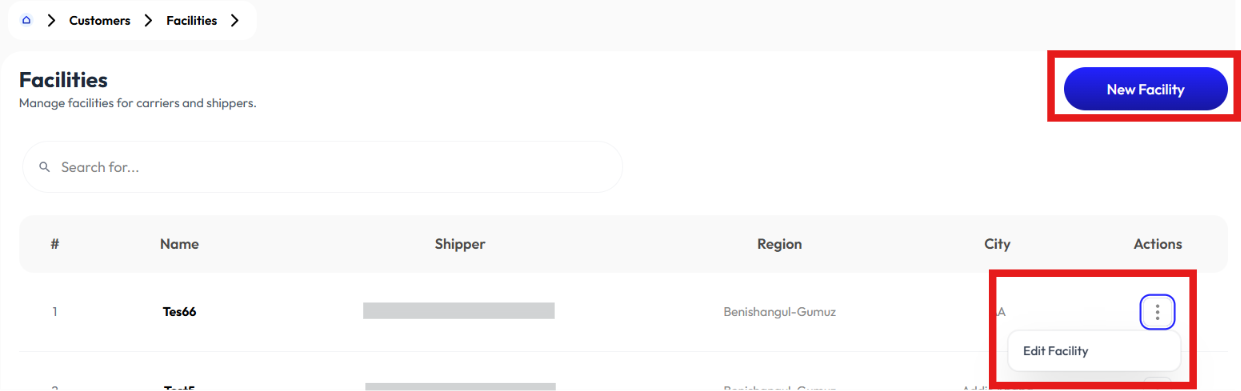
- User creates facilities using the New Facility button.
- User modifies facilities by clicking on the Edit button.
Add Facility
- Click new facility button
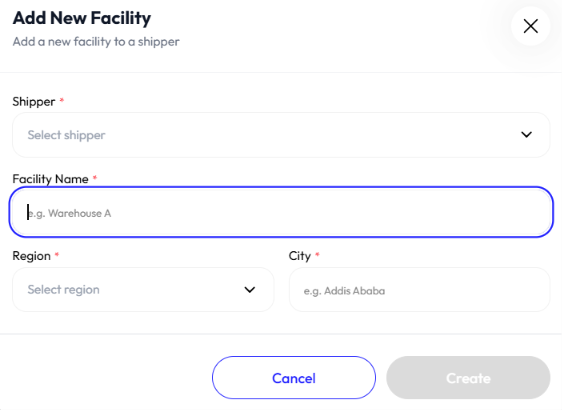
- Select shipper. To add shipper check Add Customer
- Enter facility name
- Select region. To add region check Add Region
- Enter city
- Click create
Edit Facility
- Click action button
- Click edit
- Select shipper. To add shipper check Add Customer
- Update facility name
- Select region. To add region check Add Region
- Update city
- Click update