Appearance
Drivers
Driver
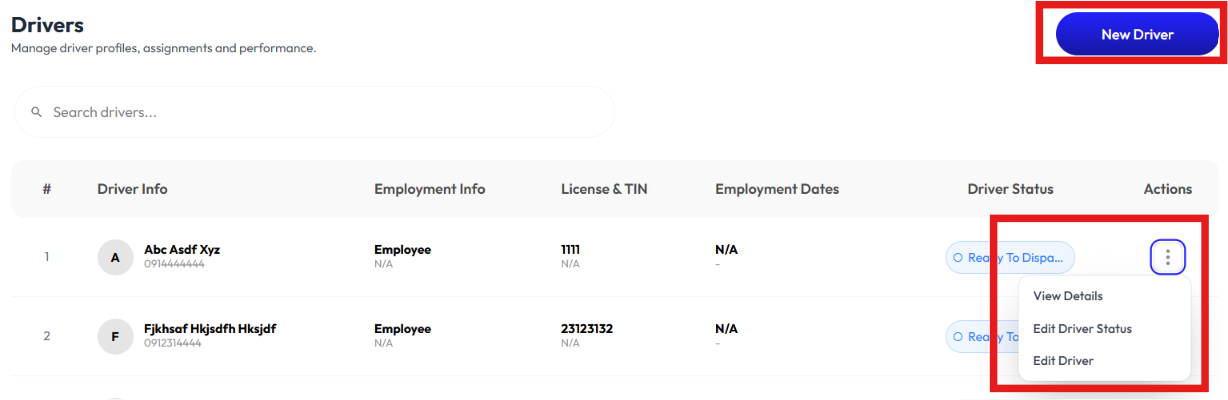
- User creates drivers using the New Driver button.
- User modifies driver's status using the Edit Status button.
- User sees information using the Detail button.
- User modifies driver information using the Edit Driver button.
- User searches for existing drivers by inputting driver's name, phone number, license and TIN number in the search bar.
Add Driver
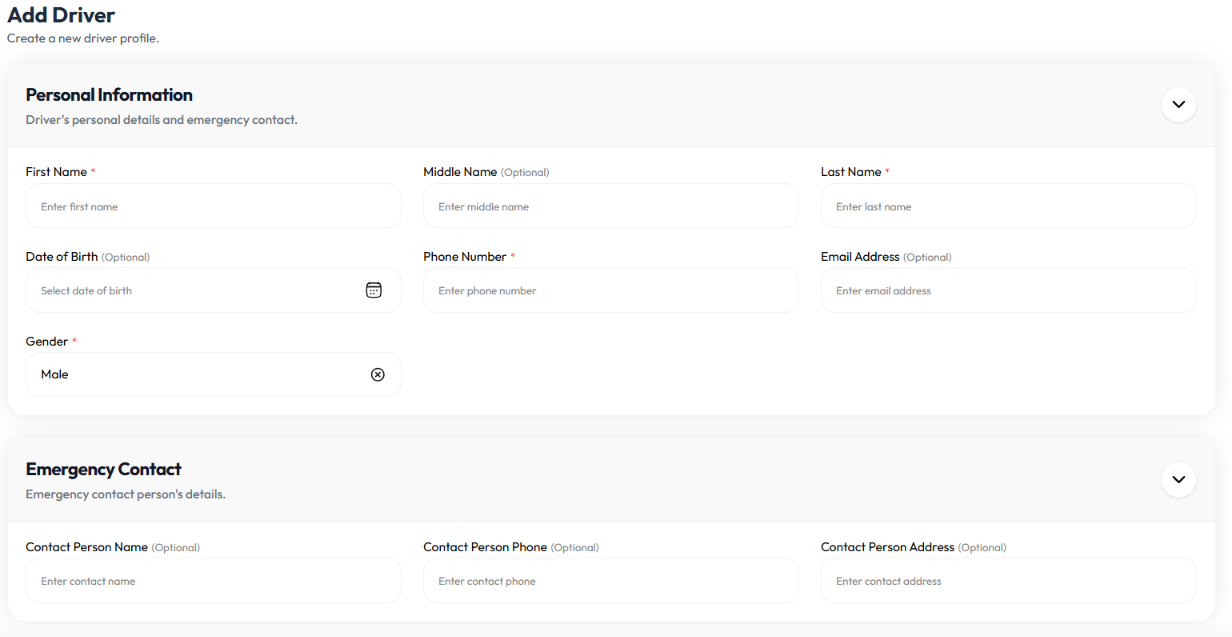
- Click new driver button
- Enter first name
- Enter middle name (optional)
- Enter last name
- Select gender
- Enter date of birth (optional)
- Enter phone number
- Enter email optional
- Enter emergency contact name (optional)
- Enter contact person phone (optional)
- Enter contact person address (optional)
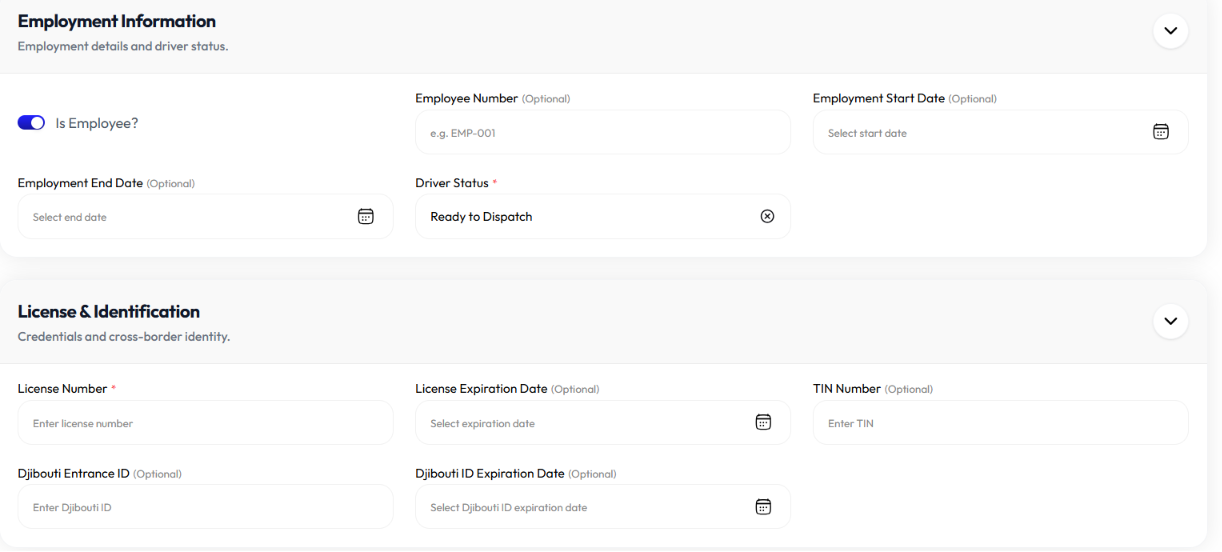
- Toggle is employee
- Enter employee number (optional)
- Enter enrollment start date (optional)
- Enter enrollment end date (optional)
- Select driver type (long haul, short haul)
- Enter driving license
- Enter driving license expiration date
- Enter TIN (optional)
- Enter Djibouti entrance id (optional)
- Enter Djibouti id expiration date (optional)
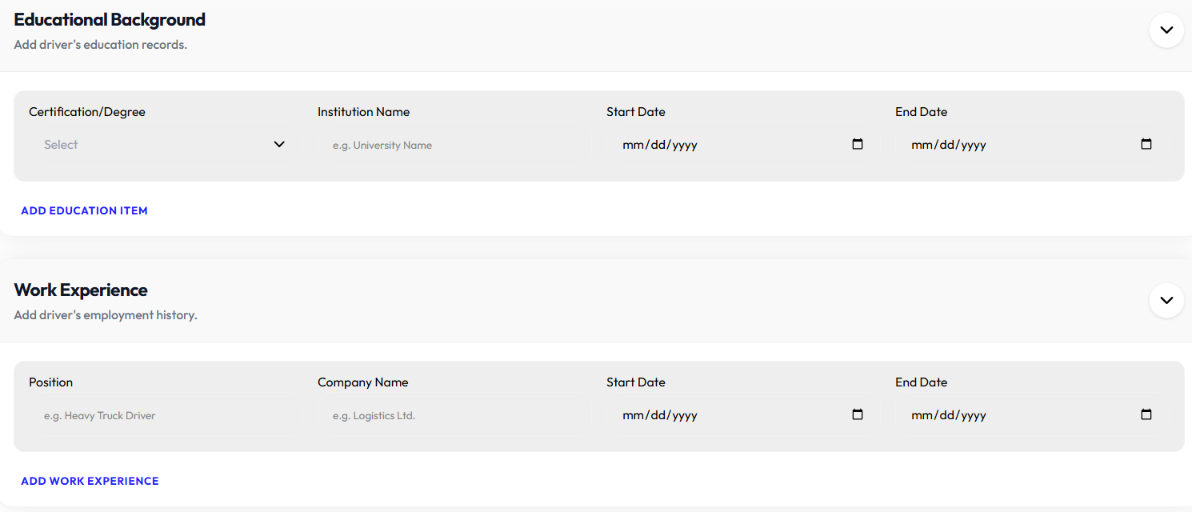
- Select certification type (optional)
- Enter institution name (optional)
- Enter start date (optional)
- Enter end date (optional)
- Click add education item to add more than one
- Enter position
- Enter company name (optional)
- Enter position (optional)
- Enter start date (optional)
- Enter end date (optional)
- Click add work experience to add more
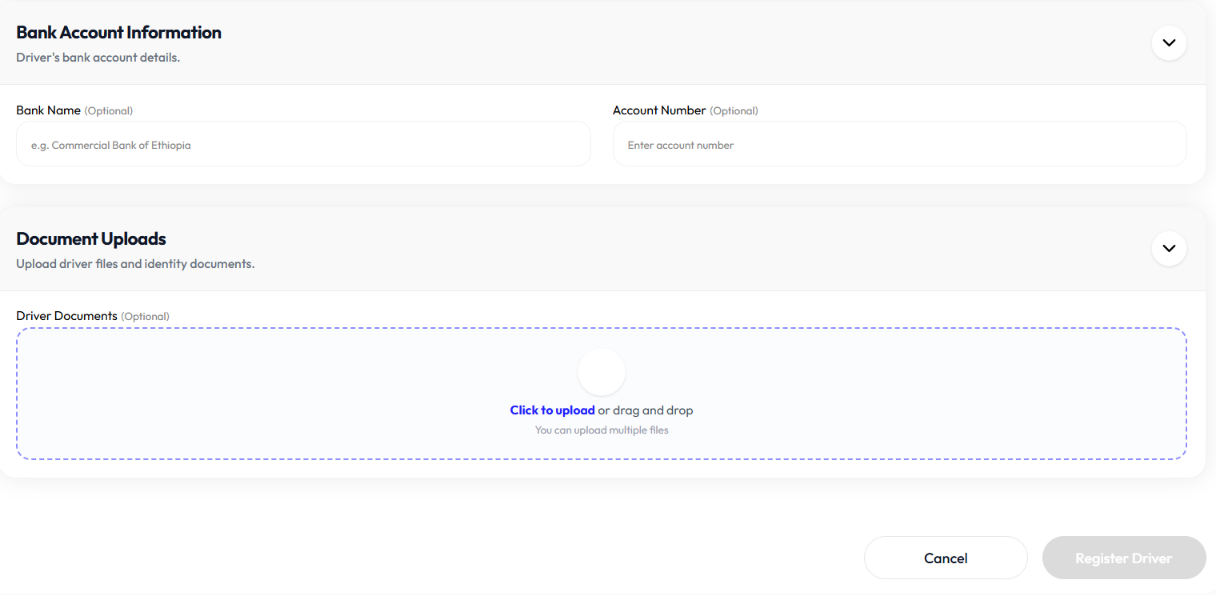
- Enter bank name (optional)
- Enter account number (optional)
- Drag and drop or select to upload documents
- Click register driver
Edit Status
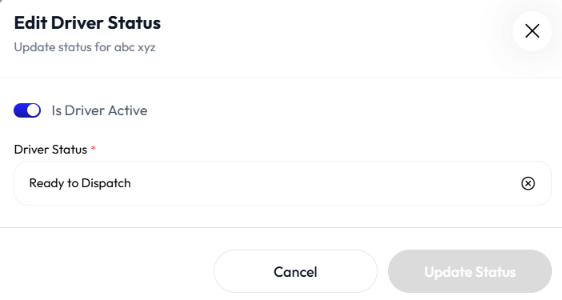
- Click action button
- Click edit driver status
- Select whether driver is active or not
- If driver is active select ready to dispatch, dispatched, vehicle not assigned
- Click ok
Detail Driver
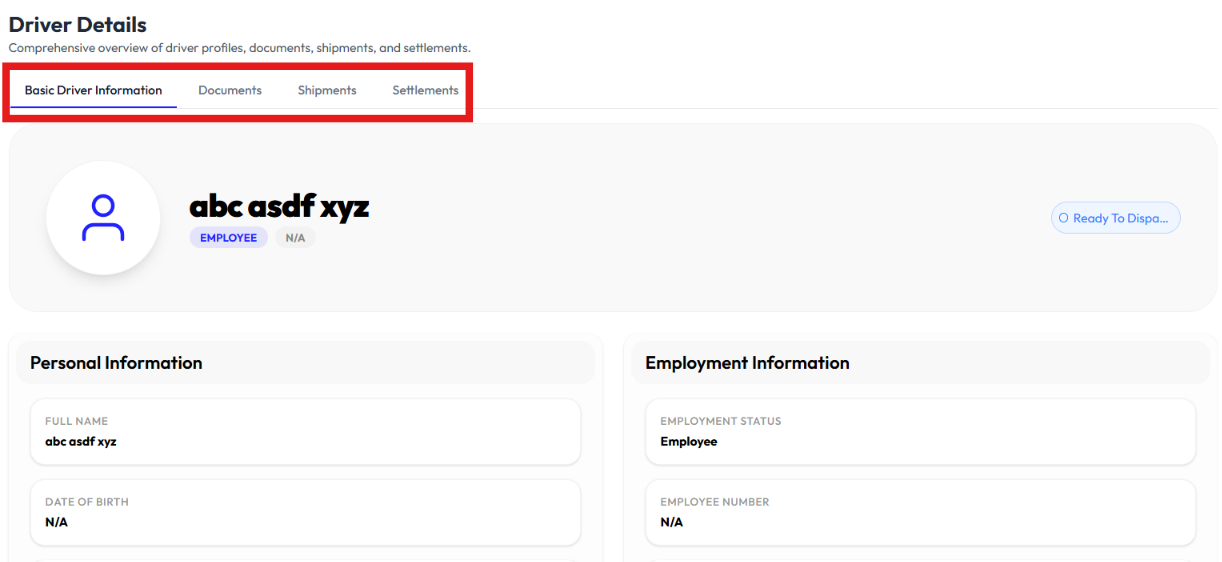
- Click action button
- Click detail
- Click:
- Basic driver information
- Documents
- Shipments
- Settlements
Edit Driver
- Click action button
- Click edit driver
- Update first name
- Update middle name (optional)
- Update last name
- Select gender
- Update date of birth (optional)
- Update phone number
- Update email optional
- Update emergency contact name (optional)
- Update contact person phone (optional)
- Update contact person address (optional)
- Toggle is employee
- Update employee number (optional)
- Update enrollment start date (optional)
- Update enrollment end date (optional)
- Select driver type (long haul, short haul)
- Update driving license
- Update driving license expiration date
- Update TIN (optional)
- Update Djibouti entrance id (optional)
- Update Djibouti id expiration date (optional)
- Select certification type (optional)
- Update institution name (optional)
- Update start date (optional)
- Update end date (optional)
- Click add education item to add more than one
- Update position
- Update company name (optional)
- Update position (optional)
- Update start date (optional)
- Update end date (optional)
- Click add work experience to add more
- Update bank name (optional)
- Update account number (optional)
- Drag and drop or select to upload documents
- Click save changes
Infraction Types
- User creates infraction types using the Add Infraction Type button.
- User modifies an infraction type using the Edit button.
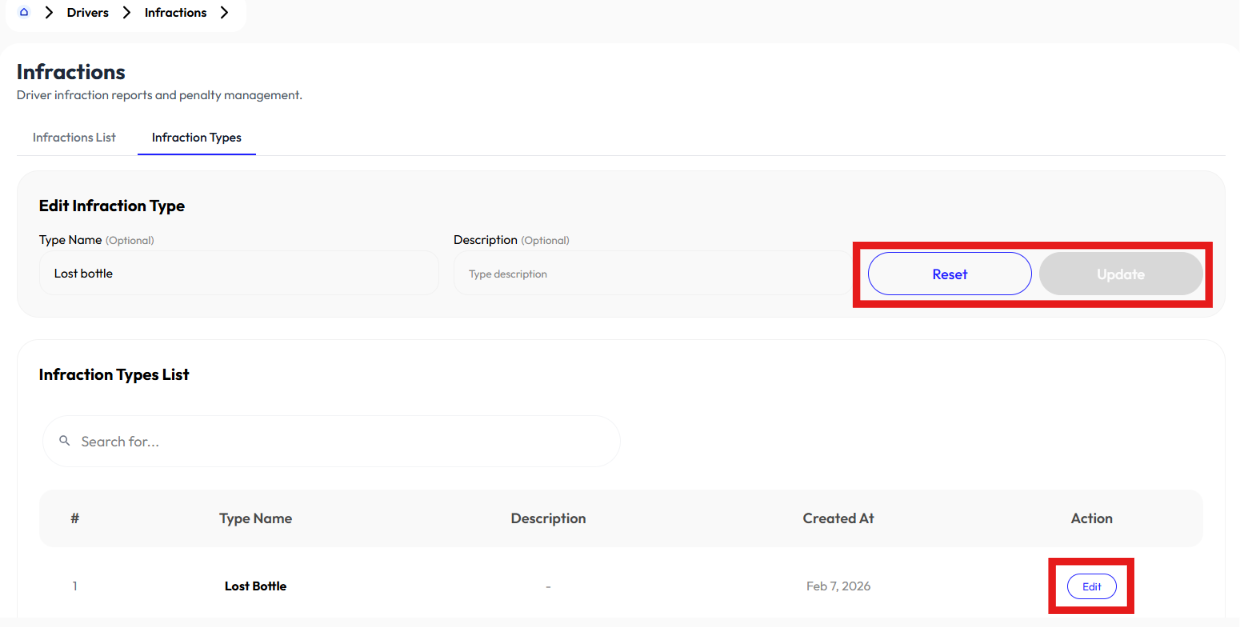
Add Infraction Type
- Click type name
- Enter description (optional)
- Click create
Edit Infraction Type
- Click edit button
- Update name
- Update description
- Click submit
Infractions
- User creates infractions using the New Infraction button.
- User modifies infractions's status in the Action section on each infraction.
- User clicks on an infraction to display Detail information of an infraction.
- User searches for existing infractions by filter them based on their status.
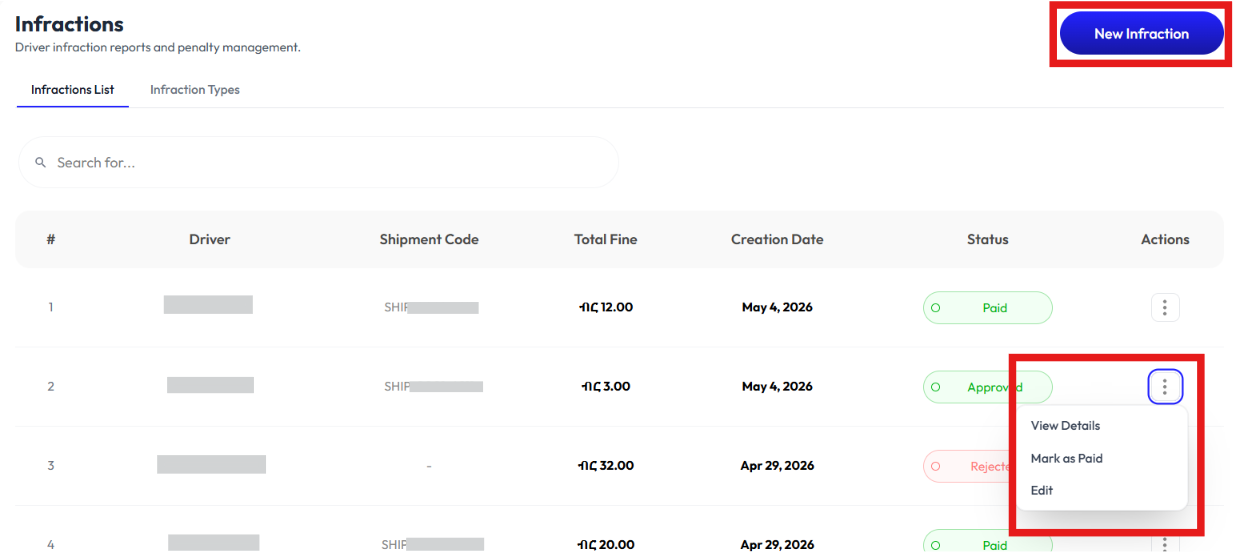
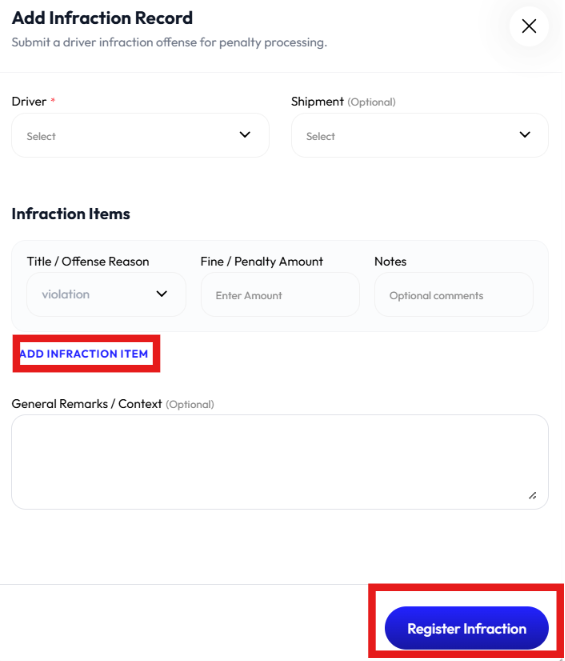
Add Infraction
- Click new infraction button
- Select driver. To add driver check Add Driver
- Select shipment (optional)
- Select infraction type. to add infraction type check Add Infraction Type
- Enter fine
- Enter note (optional)
- Click add item to add more than one infraction
- Enter general remark (optional)
- Click submit
Action
- Click action button
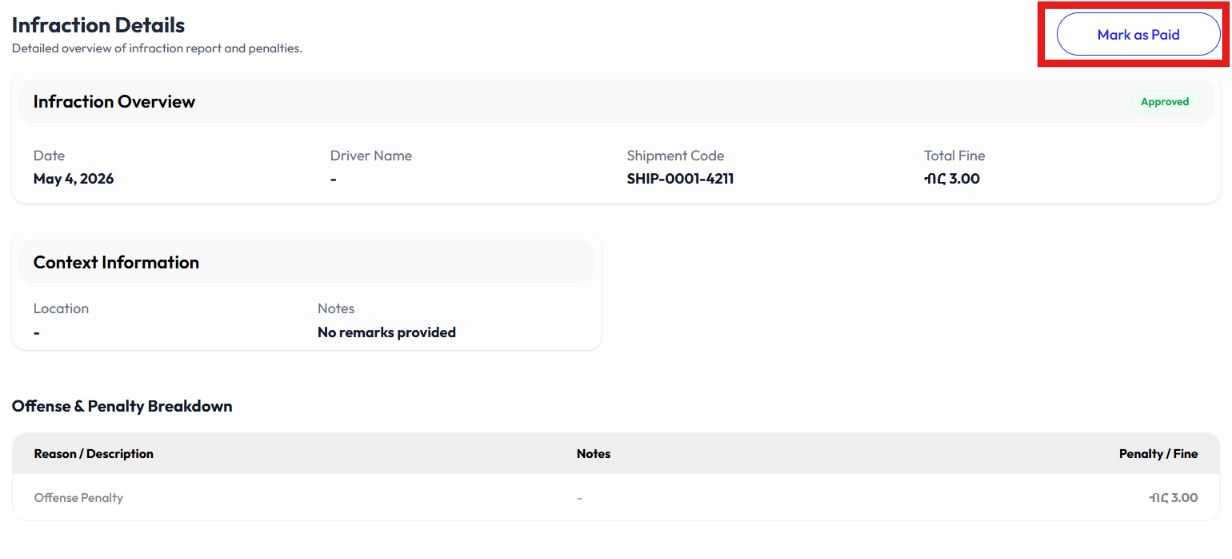
- Click mark as paid
Detail Infraction
- Click action button
- Click details